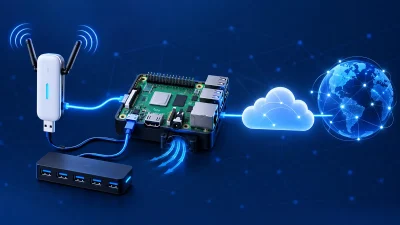
If you see “huawei e3372 not detected linux”, first find out which layer is failing: USB enumeration, mode switching, network-interface creation, power, or routing. A Huawei E3372 in HiLink mode may appear as a USB storage device first and then return as a USB Ethernet-style interface, so lsusb and ip can show different parts of the same problem.
What you need before changing anything
Use a Linux laptop, server, or Raspberry Pi with a current Debian, Ubuntu, or Raspberry Pi OS installation. Keep one E3372 connected while testing. Disconnect other dongles, USB disks, and unnecessary accessories so that every new kernel message belongs to the device you are repairing.
You will need:
- SSH or a local terminal with
sudoaccess. - The E3372, its SIM, and a known-good USB port or cable.
- A powered USB hub if the test machine is a Raspberry Pi or you are building a multi-dongle setup.
- The device ID from
lsusb -nn; do not assume that every E3372 variant uses the same product ID.
If you are building a larger proxy box, the ProxyKite mobile proxy setup guide explains the wider Raspberry Pi and dongle layout. This article isolates the USB and Linux checks first.
Step 1: Check USB enumeration and the kernel log
Why: If Linux cannot see the USB device at all, installing network packages or changing routes will not help.
Open one terminal and watch the kernel log:
sudo dmesg -wIn a second terminal, unplug the dongle, wait a few seconds, plug it in again, and run:
lsusb -nn
lsusb -t
journalctl -k -n 80 --no-pager
Look for a new USB device, a Huawei entry, or a pair of messages showing that one USB device disappeared and another appeared. Record the complete vendor:product ID from lsusb -nn. The ID can change when a multi-mode dongle switches from its storage presentation to its modem or network presentation.
Success means the E3372 appears in lsusb and the kernel log shows a clean attach. If lsusb does not change at all, skip ahead to Step 4 and test the physical connection and power before touching software.
Step 2: Move the dongle out of storage mode
Why: Many mobile broadband devices expose an onboard storage area before switching to their working modem or network mode. Linux uses USB_ModeSwitch and its data package to automate that transition.
On Debian, Ubuntu, and Raspberry Pi OS, install both packages:
sudo apt update
sudo apt install usb-modeswitch usb-modeswitch-data
Unplug the E3372, wait five seconds, and plug it back in. Then check again:
lsusb -nn
ip -br link
The USB_ModeSwitch documentation explains why a modem can initially look like a flash drive and why the configuration data matters. The normal path is automatic: udev detects a known device, runs the matching rule, and Linux discovers the newly presented interfaces.
If it still remains in storage mode, inspect the exact ID rather than copying a command for a different E3372 revision:
lsusb -nn | grep -i -E 'Huawei|12d1'
find /etc/usb_modeswitch.d /usr/share/usb_modeswitch \
  -maxdepth 1 -type f -name '12d1:*' -print 2>/dev/null
If the second command shows a configuration whose filename matches the ID you recorded, test that exact file as root:
sudo usb_modeswitch -c /path/to/the/matching-configReplace the path only with the matching file printed on your system. Do not guess a product ID or paste a vendor-specific message from a forum. After a manual test, unplug and reconnect the dongle, then check dmesg, lsusb, and ip -br link again.
Success means the storage presentation is gone or a new network-capable USB device appears. If the ID never changes and the log reports repeated USB errors, continue with the power test instead of repeatedly switching modes.
Step 3: Find the network interface
Why: A HiLink E3372 commonly behaves like a small Ethernet device. It may not create /dev/ttyUSB*, and it may not appear in mmcli even though the USB device is healthy.
List interfaces and NetworkManager’s view of them:
ip -br link
ip -br addr
nmcli device status 2>/dev/null
Look for a new name such as usb0, eth1, or enx.... Names vary by distribution and by udev’s predictable-interface rules. Compare the output with the dongle unplugged if you are unsure.
Bring the new interface up. Replace IFACE with the actual name:
sudo ip link set dev IFACE up
sudo nmcli device connect IFACE
If NetworkManager is not installed or does not manage the interface, request an address with the DHCP client available on your system:
sudo dhclient -v IFACEThe interface is working when it has an IPv4 address and the HiLink page responds through it:
ip -4 addr show dev IFACE
curl --interface IFACE --max-time 5 -I http://192.168.8.1/
An HTTP response is enough for this test; the page does not need to return a particular status code. If ip -br link shows no new interface, load the common USB network drivers and reconnect:
sudo modprobe cdc_ncm
sudo modprobe cdc_ether
Then inspect the kernel log again. USB_ModeSwitch notes that newer broadband devices often appear as Ethernet ports using drivers such as cdc_ether or cdc_ncm, rather than as traditional serial modems.
Step 4: Rule out USB power and hub problems
Why: A dongle can enumerate successfully and still reset when it starts modem activity. This is common when several devices share a Pi’s USB power budget.
Test in this order:
- Connect one E3372 directly to the computer.
- Try another USB port and, if possible, another short cable or extension.
- Move the dongle to a powered USB hub and connect the hub’s upstream cable to the Pi.
- Re-run
dmesg -wwhile the dongle registers on the mobile network.
Search for signs of resets, disconnects, or low voltage:
dmesg -T | grep -i -E 'under-voltage|over-current|reset|disconnect|error'Raspberry Pi documents a total USB budget of 1,200 mA for Pi 2, 3, and 4, and 600 mA or 1,600 mA for Pi 5 depending on the power supply. Its guidance specifically recommends a powered hub for devices that need more current, including modems. See the Raspberry Pi USB and hardware documentation for the model-specific figures.
For a single dongle, success is a stable lsusb entry, no repeating reset loop, and an interface that stays present for several minutes. For a farm, power the hub externally and add dongles one at a time. A hub that only passes data but cannot supply stable current will reproduce the same failure across every port.
Step 5: Check for a 192.168.8.x address clash
Why: A HiLink device commonly uses 192.168.8.1 as its local management address. Two dongles can therefore present the same private subnet and gateway, even though both USB devices are visible.
Check the host’s addresses and routes:
ip -4 addr
ip route
ip route get 192.168.8.1
With one dongle connected, the expected pattern is an address in the same subnet as 192.168.8.1 on the dongle’s interface. With two dongles, look for multiple interfaces with overlapping 192.168.8.x networks or multiple routes to the same gateway.
Disconnect all but one dongle and test the HiLink page again:
curl --interface IFACE --max-time 5 -I http://192.168.8.1/If one works alone but the pair does not, the USB layer is probably healthy. For a permanent multi-dongle design, give each modem a distinct private LAN subnet through its HiLink settings if that firmware exposes the option, or isolate each modem with network namespaces or policy routing. The exact menu and routing commands depend on the E3372 firmware and the Linux distribution, so do not apply a route copied from a different hardware revision without checking ip route first.
This distinction matters for proxy hosting: an interface can be present and powered while traffic still leaves through the wrong dongle. Solve the local addressing problem before measuring rotation or proxy connectivity.
Step 6: Decide whether the stick is faulty
Why: Replacing hardware too early can hide a mode-switch, power, or address problem. Use the USB evidence to separate those cases.
The E3372 is probably not a dead stick if:
lsusbsees it consistently;- the kernel reports a mode change;
- a network interface appears; or
192.168.8.1responds when only that dongle is connected.
It is reasonable to test another dongle only after the E3372 fails to enumerate on two known-good USB ports or hubs, with a known-good cable, while dmesg reports repeated USB communication errors or no device at all. Test one device at a time and keep the failing lsusb -nn and kernel-log output; those details are more useful than saying only that Linux does not detect it.
Verify the complete path
Before installing proxy software, confirm the chain in order:
lsusb -nn
ip -br link
ip -4 addr show dev IFACE
ip route get 192.168.8.1
curl --interface IFACE --max-time 5 -I http://192.168.8.1/
The final command should reach the HiLink management page through the intended interface. If you are adding a working dongle to ProxyKite, use the Linux and Raspberry Pi getting-started documentation after this check. ProxyKite supplies the software and cloud routing layer; you keep your own E3372, SIM, and data plan. It does not require a static public IP or inbound port forwarding, which is useful when the box sits behind CGNAT.
Troubleshooting by symptom
| Symptom | Most likely layer | Next check |
|---|---|---|
Nothing changes in lsusb | Port, cable, power, or hardware | Test one dongle directly on another port or a powered hub |
| Huawei appears as a storage device | Mode switching | Install usb-modeswitch and usb-modeswitch-data, then reconnect |
lsusb works but ip -br link does not change | Driver or mode | Check dmesg, then load cdc_ncm and cdc_ether |
Interface exists but 192.168.8.1 fails | Address, route, or HiLink state | Test one dongle alone and inspect ip route |
| Dongle repeatedly disconnects | Power, hub, cable, or USB errors | Watch dmesg -w while using a powered hub |
| One dongle works, two do not | Overlapping private subnets | Use distinct modem subnets or per-interface routing |
FAQ
Why is my Huawei E3372 visible in lsusb but not in ip a?
lsusb confirms that the USB bus sees the hardware; ip a only shows network interfaces. The dongle may still be in storage mode, missing a USB network driver, or resetting before the interface is created. Check dmesg, install the USB_ModeSwitch packages, and reconnect it before changing IP settings.
Does a HiLink E3372 need a ttyUSB device on Linux?
Not necessarily. HiLink variants commonly present a USB Ethernet-style interface, so a name such as usb0 or enx... can be the correct result. A missing /dev/ttyUSB* entry is not, by itself, proof that the dongle is broken.
Why does 192.168.8.1 not load with two E3372 dongles connected?
Multiple HiLink dongles can use the same private subnet and gateway. Linux then has overlapping routes and cannot reliably choose the intended interface. Disconnect all but one to confirm the cause, then use distinct modem subnets or isolate the interfaces with policy routing or network namespaces.
Can I use a Huawei E3372 with a Raspberry Pi proxy farm?
Yes, a Raspberry Pi is a suitable Linux box for a HiLink-based setup when the USB power and interface routing are stable. Use an externally powered hub for several dongles, verify each one individually, and then follow the ProxyKite rotation-link guide for the proxy-side configuration.
When should I stop troubleshooting and replace the dongle?
Replace or retest the hardware only after it fails to enumerate on known-good ports, cables, and power while other dongles work. If lsusb sees it and the failure is limited to an interface or route, continue diagnosing Linux mode switching, drivers, power, or overlapping subnets first.