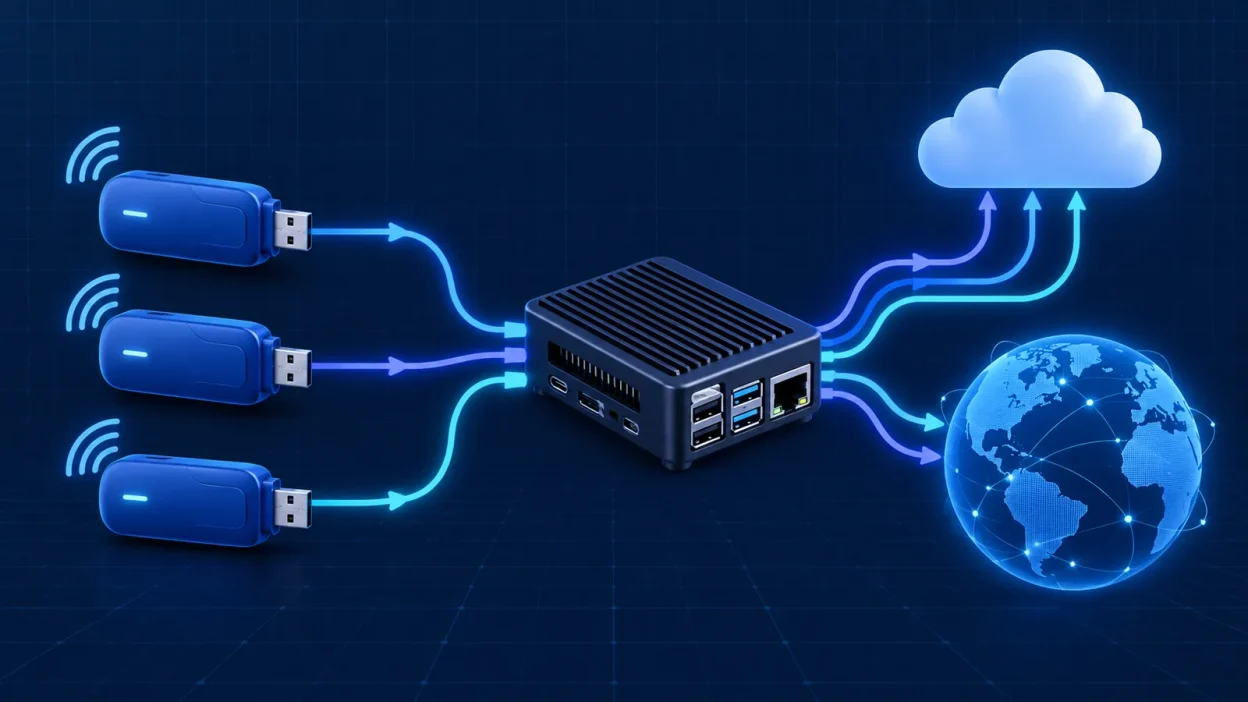
Policy routing multiple interfaces Linux is the pattern that keeps several 4G modems from competing to be one machine’s default gateway. This guide builds one routing table per modem, selects a path by source address or firewall mark, makes the rules persistent, and tests each mobile exit.
What you need
This example assumes a Linux box with two or more Huawei E3372 HiLink dongles, or similar HiLink hardware, connected over USB. Each modem should already be online and have an IPv4 address, gateway, and interface name. A powered USB hub is important once several dongles share the box; the 4G proxy farm setup guide covers the hardware side.
You also need root access, the ip command from iproute2, curl, and one network manager. The commands below use usb0 and usb1 as examples. Your system may name them eth1, enx..., or something else, so discover the real names first.
Do not add every modem’s default route to the main table and hope that route metrics will provide separate proxies. Metrics choose a preferred route for the host; they do not associate each proxy process with a different mobile connection.
Why multiple modems fight over the default route
Normal Linux routing looks up a destination in the main routing table. If DHCP adds a default route for every dongle, the result is either one preferred default, an equal-cost choice, or a table that changes as interfaces appear and disappear. None of those outcomes means “proxy A always uses modem A”.
Policy routing adds a routing policy database (RPDB) in front of the normal lookup. The kernel checks rules in increasing priority number, then looks up the selected table. The ip-rule manual page documents source, incoming-interface, firewall-mark, and other selectors.
For this use case, the clean model is:
| Traffic selector | Rule | Table | Egress |
|---|---|---|---|
Source 192.168.8.100 | from 192.168.8.100/32 | 101 | usb0 |
Source 192.168.9.100 | from 192.168.9.100/32 | 102 | usb1 |
Mark 0x65 | fwmark 0x65 | 101 | usb0 |
Each custom table contains a connected route and a default route through its own modem. The main table can remain the management path for SSH and other traffic that you have not explicitly assigned.
Step 1: Inventory every modem
Why: policy rules are only useful when they match the actual source address and interface that the modem received.
List links, IPv4 addresses, and routes:
ip -br link
ip -4 addr
ip -4 route
For each modem, record the interface, address with prefix, connected network, and gateway. Inspect a single link with:
ip -4 addr show dev usb0
ip -4 route show dev usb0
ip route get 1.1.1.1
A typical result might show an address such as 192.168.8.100/24, a connected route such as 192.168.8.0/24, and a gateway such as 192.168.8.1. Use the values your modem actually reports. Repeat for usb1 and every additional link.
If all HiLink dongles report the same LAN, such as 192.168.8.0/24, pause here. Two interfaces with the same gateway and the same source address cannot be separated reliably by a simple source rule. Either configure distinct modem-side LANs, or use the firewall-mark approach in Step 4, a network namespace per modem, or another isolation design.
Step 2: Create named routing tables
Why: separate tables keep each modem’s connected route and default gateway together instead of mixing them in main.
Reserve a table number for each modem. The names are optional, but they make ip route show table modem1 easier to read:
sudo tee -a /etc/iproute2/rt_tables >/dev/null <<'EOF'
101 modem1
102 modem2
EOF
Check for existing entries before choosing numbers. Do not reuse a table ID already owned by a VPN, container runtime, or another routing service:
grep -E '(^|[[:space:]])(101|102)[[:space:]]' /etc/iproute2/rt_tables
ip rule show
Success looks like two free IDs that you can use consistently in routes, rules, and your network-manager configuration.
Step 3: Add source-based routing per modem
Why: a proxy process can bind to a particular local address; the source rule then sends that connection through the matching modem.
Set variables from Step 1. These values are examples for two modems with different local subnets:
MODEM1_IF=usb0
MODEM1_IP=192.168.8.100
MODEM1_NET=192.168.8.0/24
MODEM1_GW=192.168.8.1
MODEM1_TABLE=101
MODEM1_PRIORITY=101

MODEM2_IF=usb1
MODEM2_IP=192.168.9.100
MODEM2_NET=192.168.9.0/24
MODEM2_GW=192.168.9.1
MODEM2_TABLE=102
MODEM2_PRIORITY=102
Install the link route and default route in each custom table. src gives Linux a preferred local address when the application has not selected one itself:
sudo ip route replace table "$MODEM1_TABLE" "$MODEM1_NET" dev "$MODEM1_IF" src "$MODEM1_IP"
sudo ip route replace table "$MODEM1_TABLE" default via "$MODEM1_GW" dev "$MODEM1_IF"

sudo ip route replace table "$MODEM2_TABLE" "$MODEM2_NET" dev "$MODEM2_IF" src "$MODEM2_IP"
sudo ip route replace table "$MODEM2_TABLE" default via "$MODEM2_GW" dev "$MODEM2_IF"
Add one rule for each source. The delete commands make the block safe to rerun after you change an address:
sudo ip rule del priority "$MODEM1_PRIORITY" from "$MODEM1_IP/32" table "$MODEM1_TABLE" 2>/dev/null || true
sudo ip rule add priority "$MODEM1_PRIORITY" from "$MODEM1_IP/32" table "$MODEM1_TABLE"

sudo ip rule del priority "$MODEM2_PRIORITY" from "$MODEM2_IP/32" table "$MODEM2_TABLE" 2>/dev/null || true
sudo ip rule add priority "$MODEM2_PRIORITY" from "$MODEM2_IP/32" table "$MODEM2_TABLE"
The priority numbers are lower than the normal main rule, normally 32766, so the modem-specific rules are considered first. Verify the result:
ip route show table modem1
ip route show table modem2
ip rule show
ip route get 1.1.1.1 from "$MODEM1_IP"
ip route get 1.1.1.1 from "$MODEM2_IP"
The two ip route get results should name different devices and gateways. The ip-route manual page documents route get, table selection, source selection, and the default route syntax.
Step 4: Use a firewall mark when source rules are not enough
Why: a mark can select a table even when several modems use overlapping HiLink address ranges or the application cannot bind to a distinct source address.
Create a mark-to-table rule for modem 1, then repeat with a different mark and table for modem 2:
sudo ip rule del priority 110 fwmark 0x65/0xff table 101 2>/dev/null || true
sudo ip rule add priority 110 fwmark 0x65/0xff table 101
For locally generated traffic, one practical pattern is to run the proxy worker under a dedicated Unix user and mark that user’s output packets. This example uses UID 1001; replace it with the real service UID:
sudo nft add table inet pbr
sudo nft 'add chain inet pbr output { type route hook output priority mangle; policy accept; }'
sudo nft 'add rule inet pbr output meta skuid 1001 meta mark set 0x65'
The mark must be set before the route lookup. If you already have an inet mangle table, add the rule to its existing output chain instead of creating duplicate tables. To use the second modem, give its traffic a different selector, set mark 0x66, and add ip rule ... fwmark 0x66/0xff table 102.
Use marks deliberately. A rule that marks every output packet will also move SSH, DNS, package updates, and monitoring to one SIM. Source binding is easier to audit when your proxy software supports it; marks are more flexible for forwarded traffic and service-level separation.
Step 5: Make the rules survive reboots
Why: ip route and ip rule changes made at a shell prompt live in the kernel until the interface or machine is restarted.
If NetworkManager owns the modem connections, put the table and rule in each connection profile. First list the profile names:
nmcli -f NAME,DEVICE,TYPE connection showThen apply the settings to the matching profiles. NetworkManager’s ipv4.route-table places the connection’s IPv4 routes in that table, while ipv4.routing-rules adds the RPDB selector. Its IPv4 reference documents both properties.
sudo nmcli connection modify "Modem 1" \
  ipv4.route-table 101 \
  ipv4.never-default no \
  ipv4.routing-rules "priority 101 from 192.168.8.100/32 table 101"

sudo nmcli connection modify "Modem 2" \
  ipv4.route-table 102 \
  ipv4.never-default no \
  ipv4.routing-rules "priority 102 from 192.168.9.100/32 table 102"

sudo nmcli connection up "Modem 1"
sudo nmcli connection up "Modem 2"
If your modem address comes from DHCP and can change, do not leave a stale /32 rule behind. Use a NetworkManager dispatcher hook or your distribution’s network-up hook to read the current address and gateway, rebuild that table, and then install the matching rule. Use only one service to own these routes; mixing NetworkManager, systemd-networkd, and a custom boot script usually creates duplicate or disappearing entries.
If systemd-networkd owns the links, express the same design in each .network file with a per-link DHCP route table and a [RoutingPolicyRule] section containing From=, Table=, and Priority=. The values must still match the address actually assigned to that modem. Reload the one network manager that owns the interfaces, then verify with ip route show table 101 and ip rule show.
Verify each exit IP
Why: a route lookup proves the kernel’s decision; an external request proves the modem and mobile carrier actually carried the connection.
Test each local source explicitly:
curl -4 --interface "$MODEM1_IP" --max-time 20 https://api.ipify.org
echo
curl -4 --interface "$MODEM2_IP" --max-time 20 https://api.ipify.org
echo
The responses should be public IPv4 addresses from the two mobile connections. They do not need to be permanent, and they may change when a carrier session is renewed. What matters is that two tests bound to two different local sources leave through the intended interfaces.
For a proxy service, repeat the test through each listening port or endpoint. Confirm that the service is actually binding the worker socket to the intended modem address; a listener on 0.0.0.0 alone does not select an egress path. The ProxyKite proxy formats guide is useful once you turn the working paths into HTTP or SOCKS5 endpoints.
Troubleshooting
Both tests return the same exit IP
Run ip route get 1.1.1.1 from <source-ip>. If both results show the same device, the rule priority, source address, or table is wrong. If the route lookup is correct but curl is not, the application is not binding to the source address, or the firewall mark is not being restored before output routing.
RTNETLINK answers: Network is unreachable
The custom table probably has a default route but no connected route to the modem gateway. Add the modem’s actual connected prefix first, then the default route. Check ip -4 route show dev <interface> rather than assuming every HiLink device uses the same prefix.
One modem works until another is plugged in
Look for duplicate default routes in main, duplicate rules, or a network manager rewriting the table after DHCP renews. ip monitor route and ip monitor rule show changes while you reconnect a dongle. Move the routes into the manager that owns the interfaces and keep the management interface’s default route in main.
Every dongle uses 192.168.8.0/24
That is an overlapping-LAN problem, not a missing ip rule flag. A source /32 rule cannot distinguish two interfaces that present the same local address. Use distinct modem-side subnets where supported, or isolate each modem in a network namespace and connect the proxy workers to those namespaces; a mark-based design can also work when your traffic classification is reliable.
The modem route works but DNS does not
Test an IP first with curl --interface <source-ip> https://1.1.1.1/. If that works, inspect which resolver is being used and whether DNS queries are bound to the desired path. For a proxy product, prefer the proxy worker’s own resolver behavior and verify the public endpoint rather than changing the host’s global DNS setting blindly.
Skip the manual routing: what ProxyKite handles
Manual policy routing is useful when you want to learn the kernel path or maintain a custom network design. It becomes operational work once every dongle needs a public HTTP and SOCKS5 endpoint, authentication, rotation, usage limits, SMS access, and a way to survive modem reconnects.
ProxyKite’s Linux agent and cloud router are designed for customer-owned Huawei E3372 HiLink dongles on a Raspberry Pi or Linux box. The licence is $9 per dongle per month, with no per-GB charge; you provide the hardware and SIM data plan. The service does not require a static IP or inbound port forwarding, so the box can remain behind CGNAT.
You can rotate on demand, with a rotation link, or on a timer from 60 seconds to 7 days, with a sticky option. Sub-users, white-label controls, REST API access, bandwidth limits, SMS inbox/send, and live traffic insights are included in the per-dongle licence. See the Raspberry Pi mobile proxy guide for the hardware model and the ProxyKite getting-started documentation for the installation path.
FAQ
What is policy routing in Linux?
Policy routing lets Linux choose a routing table from selectors such as source address or firewall mark, instead of using only the destination and main table. ip rule checks those selectors in priority order, then the selected table supplies the next hop and interface.
Can I use multiple default gateways on one Linux host?
Yes, but put each default route in its own table and select that table with an ip rule. Multiple defaults in the main table alone usually provide preference or load sharing, not a reliable per-modem path for separate proxy workers.
Do I need a static public IP for each 4G modem?
No. The policy route uses the modem’s local address and gateway on the Linux box; the mobile network supplies the public address. The public address can change when the cellular session changes.
Why do identical HiLink subnets break source-based routing?
Source rules match addresses, not the physical intention behind an address. If two interfaces both use the same local subnet and address, the kernel needs another selector, such as a firewall mark, namespace, or distinct modem-side subnet, to keep the paths separate.
How can I expose each modem as a proxy endpoint?
Bind each proxy worker to the modem source address, or classify the worker’s traffic with a firewall mark and an ip rule. After the route lookup is correct, test the endpoint from outside the box and confirm each endpoint returns the expected mobile exit before adding rotation or customer traffic.