
Build your own mobile proxy with a 4G USB dongle, a SIM card, and a small Linux box that sends traffic through the mobile network. The hardware is straightforward; the difficult part is making a proxy reachable when the carrier places your SIM behind CGNAT.
This guide uses a Huawei E3372 HiLink dongle and a Raspberry Pi as the reference build. You can run the same pattern on another Linux box, but keep the network design the same: the dongle provides the mobile exit, the box manages it, and a public endpoint makes the proxy usable from your clients.
What you need
Start with one dongle and one SIM. Prove the complete path before adding a USB hub and more interfaces.
| Part | What to choose | Why it matters |
|---|---|---|
| 4G USB dongle | Huawei E3372 HiLink or a similar HiLink model | HiLink exposes a small web-managed network to the Linux box. |
| SIM card | An activated SIM with a data plan you are allowed to use in a modem | The SIM supplies the mobile connection and the mobile exit IP. |
| Linux host | Raspberry Pi or another supported Linux box | It runs the agent or your proxy software and keeps the dongle online. |
| Powered USB hub | A powered hub for more than one dongle | It supplies stable USB power as the fleet grows. |
| Network connection | Ethernet or Wi-Fi with outbound internet | The host needs to reach the cloud router; it does not need a static public IP. |
The SIM, dongle, data plan, and bandwidth are yours to source. ProxyKite provides software and cloud routing; it does not sell IPs, SIM cards, dongles, data plans, or bandwidth.
For a multi-dongle farm, label every stick and record its SIM, physical USB port, carrier, and intended use. That small inventory prevents you from debugging the wrong interface later.
Step 1: Prepare the Linux box and dongle
Why this matters: you want to isolate hardware and connectivity problems before adding proxy software.
- Install a current Raspberry Pi/Linux distribution and connect the box to its normal uplink.
- Insert the SIM into the E3372, connect the dongle directly to the box, and wait for its status lights to settle.
- Check that Linux sees the USB device and that the box has its regular internet connection:
lsusb
ip addr
ip route
curl -sS https://api.ipify.org && printf '\n'- Keep the first test on a direct USB port. Move to a powered hub only after one dongle works.
Success looks like a detected USB device, a usable default route, and a response from the public IP check. The public IP at this stage is the box’s current egress path; it is not yet a public proxy endpoint.
Step 2: Put the Huawei E3372 in HiLink mode
Why this matters: a HiLink stick behaves like a small router, which gives the host a local router address and a web interface instead of requiring a serial modem setup.
- Connect to the dongle and open
http://192.168.8.1from the box or a machine on the same local network. - Confirm that the dashboard shows the SIM registered on the mobile network and that data is connected.
- On Linux, inspect the address and route assigned to the dongle:
ip addr
ip route
curl -sS http://192.168.8.1/ | head- If the device appears as a virtual CD-ROM or storage device instead of a network interface, install the distribution packages for
usb-modeswitchandusb-modeswitch-data, reconnect the stick, and checklsusbagain. USB_ModeSwitch documents this storage-to-modem transition and its device database in its Linux USB mode-switching guide.
The expected HiLink router address is 192.168.8.1. The host may receive another address in the same local range. The important result is that the box can reach the dongle’s dashboard and that the dongle can reach the internet through the SIM.
Step 3: Solve the CGNAT reachability problem
Why this matters: a proxy listening on the Pi is not automatically reachable by your client, even when the Pi can browse the internet.
There are two different connections in this build:
client → public proxy endpoint → tunnel or cloud router → Linux box → HiLink dongle → mobile networkMobile carriers commonly place subscribers behind Carrier-Grade NAT. The IETF reserves 100.64.0.0/10 as shared address space for this type of deployment in RFC 6598. An address on the dongle or host can therefore be usable for outbound traffic while not accepting unsolicited inbound connections.
Port forwarding on a home router does not fix carrier-side NAT. You need one of these designs:
- A DIY reverse connection from the box to a public VPS that you control.
- A managed cloud router that accepts the client connection and carries it over an outbound tunnel to the box.
Test outbound mobile connectivity separately from inbound reachability. From the box, curl https://api.ipify.org proves that the SIM can reach the internet. It does not prove that a client on another network can connect to a port on the box.
Option A: DIY with 3proxy and a VPS tunnel
Why use this path: it gives you maximum control when you want to assemble every layer yourself.
3proxy can provide HTTP and SOCKS proxy services, authentication, logging, and port mapping. A typical DIY design has four parts:
- Install 3proxy on the Linux box and bind its service to a local port, such as
3128for HTTP or1080for SOCKS5. - Configure authentication and restrict the listener. Do not expose an unauthenticated proxy to the internet.
- Create an outbound SSH or VPN tunnel from the box to a VPS with a public address. The VPS forwards a public port back through that tunnel to the local proxy port.
- Add a VPS firewall rule for only the public ports you need, then test from a different network.
An illustrative reverse SSH shape is:
ssh -N -o ExitOnForwardFailure=yes \
  -R 30007:127.0.0.1:3128 tunnel-user@vps.example
This command is only the forwarding layer. You still need a persistent service, key-based authentication, reconnect handling, firewall rules, and policy routing if the Pi has both a wired uplink and a mobile interface. Without policy routing, the proxy process may send traffic through the wrong default route.
DIY is a good fit for an operator who already manages Linux services and tunnels. It becomes a separate project for every new dongle: assign an address, add a proxy port, keep the tunnel alive, route traffic through the correct interface, and build your own rotation and monitoring logic.
Option B: Install ProxyKite for cloud routing
Why use this path: it keeps the box behind outbound-only connectivity and gives each active dongle a public HTTP and SOCKS5 endpoint without port forwarding.
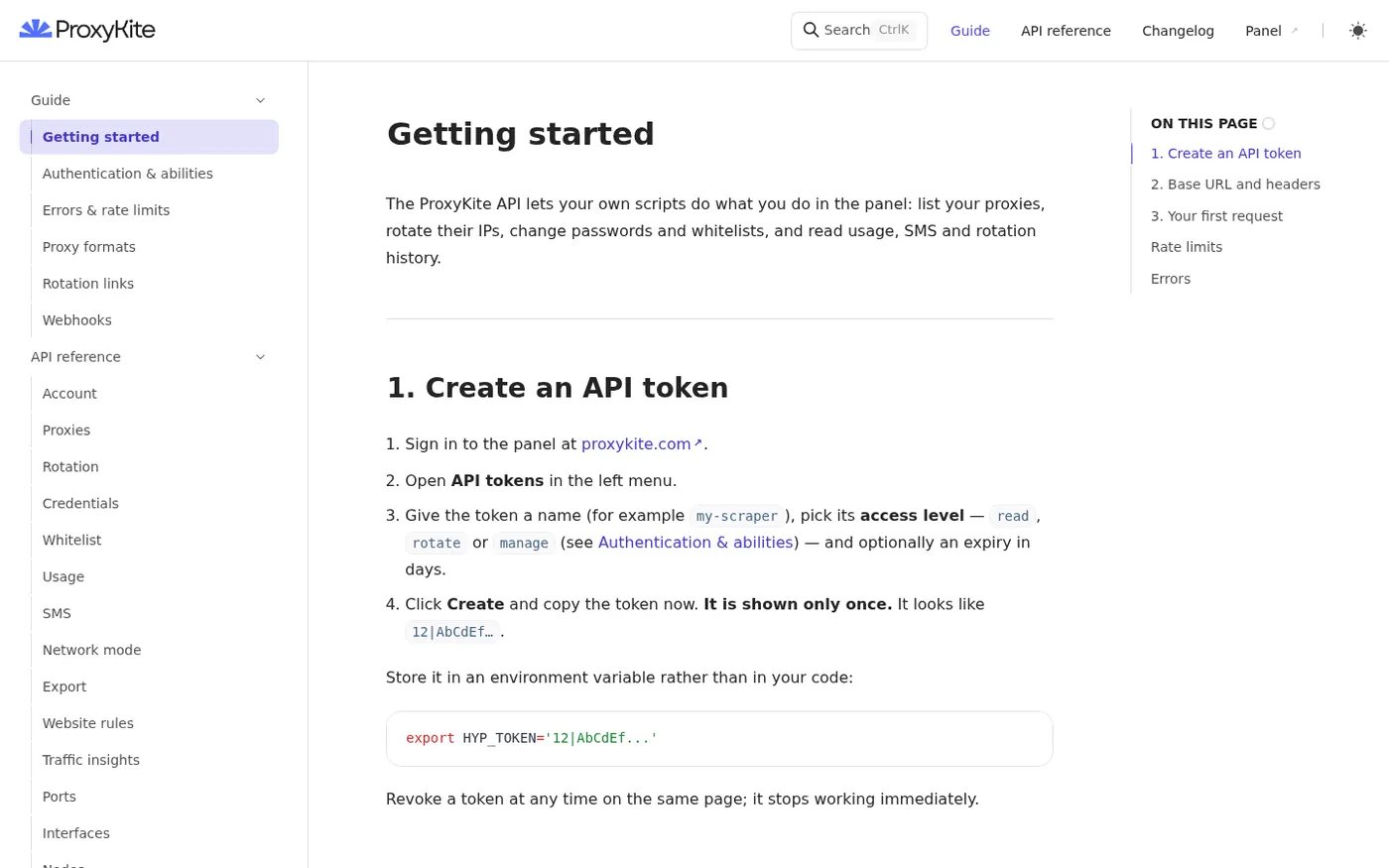
After you have a ProxyKite licence key, run the installer on the Linux box as root. Replace the placeholder with the key supplied for your account:
curl -fsSL https://proxykite.com/install.sh | sudo bash -s -- \
  --key XXXX-XXXX-XXXX-XXXX
The installer detects supported Linux CPU types, installs the agent, and registers the box with the panel. Open the getting-started guide for the current panel flow, then confirm that the node and dongle appear online.
Each dongle is published through a public cloud-router host and port. You can use one combined port that detects HTTP or SOCKS5, or separate ports for the two protocols. Authentication is user-and-password by default; you can also use an IP whitelist where that fits your client network.
There is no static IP or open inbound port requirement on the box. The box makes the outbound connection, so the design works when the mobile carrier uses CGNAT. For more than one dongle, add a powered hub, connect the sticks, and let the panel identify each proxy separately.
Add IP rotation
Why this matters: rotation is a control action on a particular SIM connection, not a property of the public proxy port by itself.
ProxyKite supports three rotation triggers:
- On demand: start a rotation from the proxy page or API when your workflow needs a new mobile IP.
- Rotation link: call the secret link from a scheduler or application that should rotate one proxy without holding an API token.
- Timer: set an automatic interval from 60 seconds to 7 days, with a sticky option when you need a session to remain on one IP.
The rotation link is a credential. Anyone who has it can request a rotation for that proxy, so store it like a password. A POST is the clearest command-line form:
curl -X POST --max-time 90 \
  'https://proxykite.com/r/<rotation_token>'
The response includes the old and new IP values when the rotation completes. See the rotation-links guide for GET-only clients, response codes, and link handling. Do not put a rotation link in a public issue, browser history shared with clients, or a front-end application.
Test the proxy with curl
Why this matters: a test from the same Linux box can hide routing and authentication errors, so test the exported endpoint with the exact protocol your client will use.
Use a connection string from the panel or export. Keep credentials in an environment variable while testing:
export HTTP_PROXY_URL='http://user:password@proxy-host:30007'
export SOCKS_PROXY_URL='socks5h://user:password@proxy-host:30007'

curl -x "$HTTP_PROXY_URL" https://api.ipify.org
printf '\n'
curl -x "$SOCKS_PROXY_URL" https://api.ipify.org
printf '\n'
The socks5h form asks curl to resolve the destination hostname through the proxy. That is useful when you want DNS requests to follow the mobile path. ProxyKite also exports formats such as host:port:user:pass, user:pass@host:port, HTTP URLs, and SOCKS5 URLs; the proxy formats guide shows where each fits.
Success means both requests complete, authentication is accepted, and the observed address is the mobile connection for that dongle. Test from a separate machine or network as well. Then rotate once and repeat the check to confirm that your rotation workflow reaches the right proxy.
Cost per dongle per month
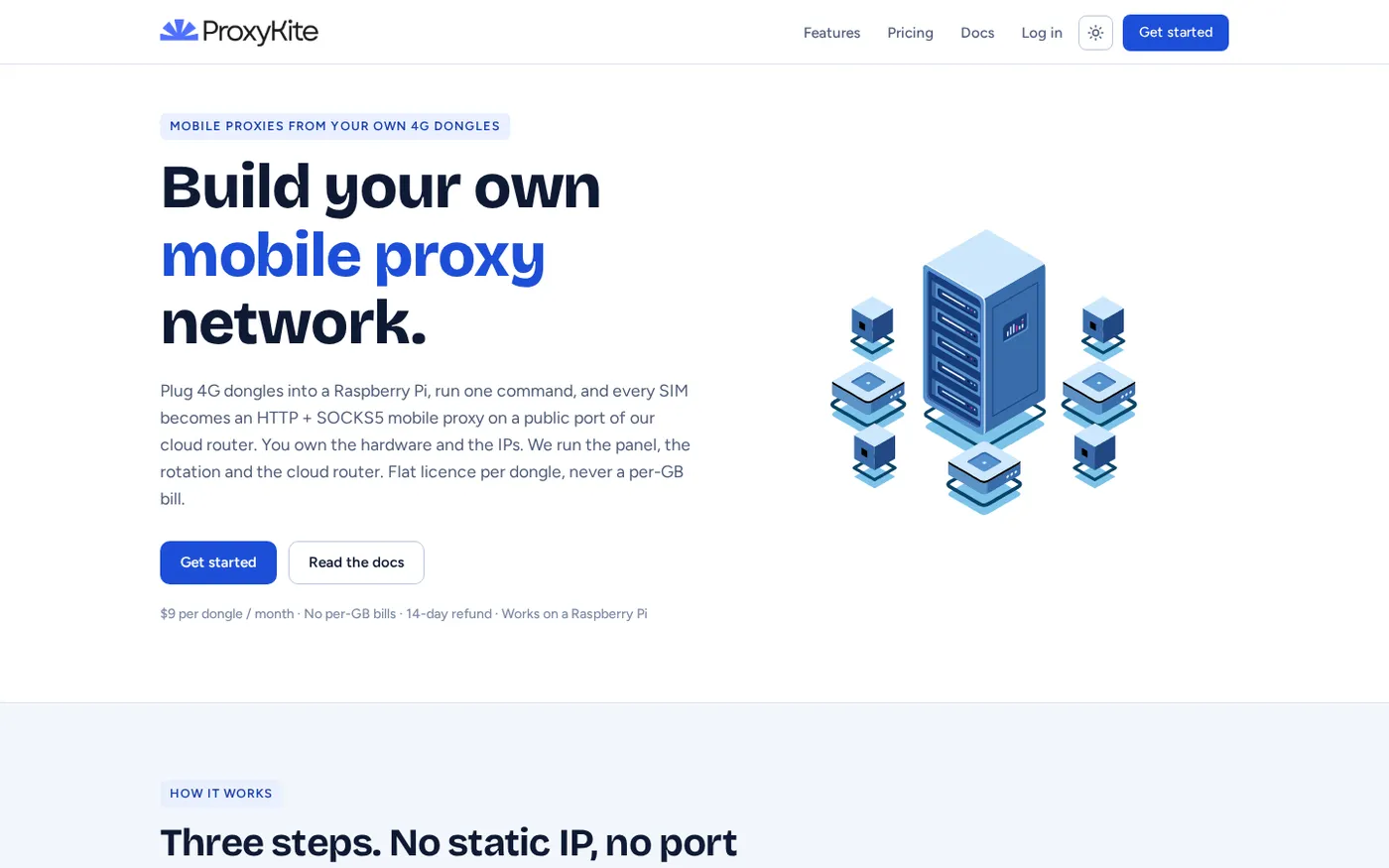
Separate the one-time build cost from the recurring cost. Your hardware and SIM costs depend on what you already own, your country, and your carrier’s plan. Do not budget the software as a traffic package: the traffic travels over your own SIM data plan.
| Cost item | How to budget it |
|---|---|
| Raspberry Pi/Linux box, dongle and powered hub | Your hardware purchase; one box can host multiple dongles if its power and USB layout are suitable. |
| SIM and mobile data | Your carrier’s plan and any carrier taxes or limits. |
| ProxyKite licence | $9 per dongle /month, USD, billed monthly by Paddle (taxes added at checkout); only active dongles billed; no per-GB charges; 14-day money-back. |
| Ten active dongles | 10 × $9 = $90 per month for the ProxyKite licence, before your SIM plans and taxes. |
| Fifty or more dongles | Volume pricing is available on request through Contact ProxyKite. |
The licence includes the cloud routing layer, HTTP and SOCKS5 access, rotation controls, SIM inbox for carrier messages, bandwidth limits, live traffic insights, website rules, webhooks, Telegram alerts, exports, sub-users, white-label tools, and the REST API. The pricing section has the current checkout path and billing details.
Verify the finished build
Run this checklist before connecting a customer or automation job:
- The E3372 opens at
192.168.8.1and reports an active data connection. - The Linux box sees the dongle and can reach the internet through it.
- The panel shows the node and proxy as online.
- An authenticated HTTP request succeeds from another network.
- An authenticated SOCKS5 request succeeds, preferably with
socks5hfor DNS-through-proxy testing. - A rotation request returns a result for the intended proxy.
- The new connection is tested again after rotation.
- Limits, website rules, credentials, and alerts match the way you plan to use the proxy.
For a farm, repeat the checklist per dongle. A green node does not prove that every SIM, USB port, route, and proxy credential is correct.
Troubleshooting
192.168.8.1 does not open
Check the USB connection, SIM seating, and ip route. If Linux sees a storage device rather than a network interface, check USB mode switching and reconnect the dongle. Test one stick directly before investigating a hub.
The Pi has internet, but the public proxy times out
This is usually a reachability design problem, not a curl problem. A carrier-side CGNAT address does not accept inbound connections. Use the outbound cloud-router path or complete the reverse VPS tunnel, then test the public host and port from a separate network.
The proxy works, but the wrong IP appears
Check which interface the proxy process uses and whether the host has both a wired route and a mobile route. In a DIY build, add deliberate policy routing. In a managed build, confirm that the correct dongle is associated with the proxy you exported.
Authentication fails
Copy a fresh connection string from the panel. Confirm that special characters in the username or password are URL-encoded when placed inside a URL. If you use a whitelist, verify that the client’s public IP is the one on the whitelist.
Several dongles disconnect under load
Use a powered USB hub rated for the number of sticks connected, shorten questionable USB cables, and check the host’s power supply. Add dongles one at a time and verify each one before scaling the farm.
FAQ
Can I build my own mobile proxy without a Raspberry Pi?
Yes. The Raspberry Pi is the reference platform, not the only one. A supported Linux box with USB connectivity, outbound internet, and enough power for the dongles can fill the same role.
Does CGNAT prevent a 4G proxy from working?
CGNAT prevents direct inbound access in many mobile setups, but it does not prevent the box from making an outbound connection. A cloud router or reverse tunnel gives clients a public endpoint while the box stays outbound-only.
Does ProxyKite charge for proxy traffic?
No. The ProxyKite licence is charged per active dongle, and traffic uses your own SIM data plan. Your carrier’s plan remains your responsibility, so set bandwidth limits when you need a predictable operating envelope.
Can I run a proxy farm for resale?
Yes, provided your use complies with applicable laws, carrier terms, and the service terms of the sites you access. ProxyKite includes sub-users and white-label features, and operators with 50 or more dongles can ask about volume pricing through contact.
What should I build first: one proxy or a full farm?
Build one complete, tested proxy first. Once the HiLink connection, public endpoint, authentication, rotation, and monitoring work together, add a powered hub and repeat the same checklist per dongle.