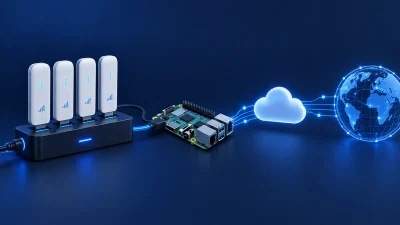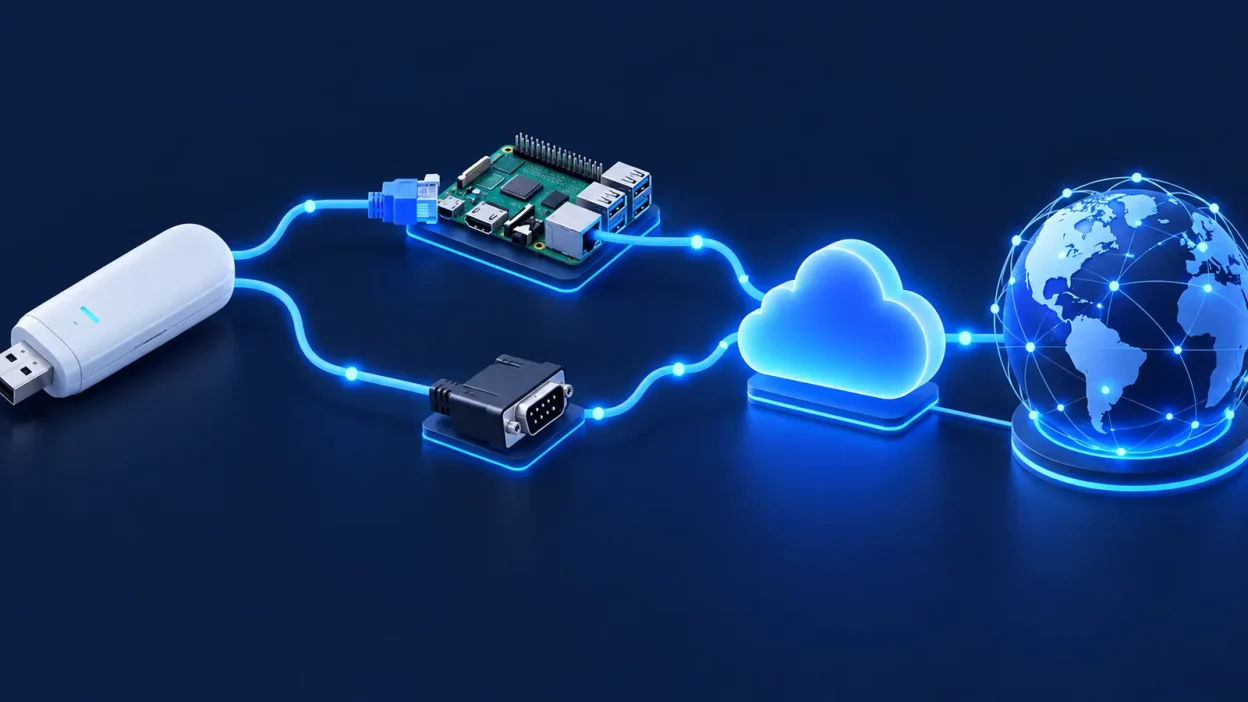
The e3372 hilink vs stick mode question is really about firmware and the way Linux reaches the mobile connection. HiLink normally behaves like a small router with an Ethernet-style interface, while Stick mode exposes modem-style control interfaces; for a Raspberry Pi proxy farm, HiLink is usually the simpler starting point.
HiLink vs Stick in one table
The names are easy to mix up because the E3372 can appear in several USB states during startup. “Mass storage” or “installer” mode is not the same thing as Stick mode, and usb_modeswitch is not a firmware flasher.
| Mode or state | What Linux usually sees | Who handles the mobile connection | Practical proxy-farm meaning |
|---|---|---|---|
| HiLink | A USB Ethernet or network interface such as usb0 or wwan0; often a private address | The dongle’s HiLink software, web interface, DHCP, and NAT | The Raspberry Pi gets a normal network path with less modem scripting |
| Stick mode | Serial devices such as /dev/ttyUSB*, sometimes with a modem or other mobile-broadband interface | Linux tools and the modem protocol, which can vary by firmware | More direct modem control, but more connection-manager work |
| Installer/storage state | A virtual CD-ROM or storage device; often 12d1:1f01 on Huawei hardware | Nothing useful for data yet | The device still needs its supported USB mode switch |
HiLink commonly provides a local management page at 192.168.8.1 and gives the host a private address. That is expected: the dongle is doing routing and NAT before traffic reaches the carrier network. The exact address, interface name, and product ID can vary by model, firmware, and distribution.
Stick mode is a family of modem presentations rather than one universal Linux interface. One E3372 variant may expose serial ports for AT commands and PPP, while another may use a different mobile-broadband protocol. Check the device you have instead of copying a product ID from a forum post.
Find your mode with lsusb
Start with observation. Do not flash firmware or install a connection profile until you know what the dongle is presenting.
Install the small set of tools used for identification:
sudo apt update
sudo apt install usbutils usb-modeswitch usb-modeswitch-data
Now inspect the USB device, network interfaces, serial ports, and recent kernel messages:
lsusb
ip -br link
ip -br addr
ls -l /dev/ttyUSB* /dev/ttyACM* 2>/dev/null
dmesg | tail -n 60
Read the results as clues:
12d1:1f01is a common Huawei default or installer-state ID. It tells you that the device has not yet reached its useful network presentation; it does not tell you that the E3372 is in Stick mode.12d1:14dband12d1:14dcare commonly seen as HiLink target IDs for Huawei devices. If one appears alongside an Ethernet-style interface and DHCP gives the host an address, you are likely looking at HiLink.- One or more
/dev/ttyUSB*devices usually indicate a serial modem presentation. That is a strong Stick-mode clue, but it is not a complete proof because some firmware exposes control ports in more than one operating state. - A network interface plus a private address such as
192.168.8.xpoints toward HiLink. Try the dongle’s management address only after checking the address assigned to the interface.
The USB vendor and product ID are hexadecimal identifiers, not a promise about the firmware. The same E3372 family has hardware and firmware revisions with different behavior. The USB_ModeSwitch documentation explains the tool’s general purpose, and its E3372 Linux discussion shows why the observed IDs and re-enumeration logs matter.
For a closer look while reconnecting the dongle, use a second SSH session or terminal:
sudo dmesg --followUnplug and reconnect one device. A successful switch normally shows the old USB device disappearing and a new USB device or interface appearing. In a multi-dongle hub, test one stick at a time so you can match the log to the physical device.
Why HiLink suits a proxy farm
The important question for a proxy farm is not whether Stick mode is more “professional”. It is whether the box can keep each cellular uplink usable, identifiable, and reachable by your proxy software with little custom plumbing.
HiLink is usually a good fit because the dongle presents a network connection to Linux. The Pi does not need to manage every modem session with a PPP script before higher-level proxy software can use the link. You can configure the APN and mobile connection in the dongle’s own interface, then let the Linux host route traffic through the resulting network interface.
That model also fits networks where inbound connectivity is unavailable. With ProxyKite, each compatible dongle is connected to a cloud router over outbound internet; you do not need a static IP or an open inbound port on the Raspberry Pi, and the setup can work behind CGNAT. The customer supplies the hardware and SIM, while ProxyKite provides the software and cloud routing layer.
ProxyKite’s getting started guide is written around Huawei E3372 HiLink hardware on a Raspberry Pi or Linux box. Once the dongle is online, the service can expose HTTP and SOCKS5 access, rotation controls, bandwidth limits, SMS tools, and exports for the proxy credentials. Rotation can be triggered on demand, by a link, or on a timer from 60 seconds to 7 days, with a sticky option.
The licence is $9 per dongle per month. There is no separate ProxyKite traffic charge because the traffic uses the customer’s own SIM data plan. If you need a larger fleet, the reseller section covers the route for 50 or more dongles.
Stick mode can still be the right choice when you specifically need modem-level AT commands, a software stack that requires serial ports, or a firmware variant that does not provide a usable HiLink interface. It is not automatically better for proxy hosting. It simply moves more connection responsibility to Linux, so validate the exact model before standardising a fleet.
Switching modes with usb_modeswitch
usb_modeswitch handles USB devices that first appear in an install or storage configuration and then need to re-enumerate as a modem or network device. It sends the device’s supported switch request; it does not replace the firmware.
If your E3372 appears as 12d1:1f01, first check whether the distribution installed a matching data file:
ls -l /usr/share/usb_modeswitch/12d1:1f01On systems with that configuration, a manual switch can look like this:
sudo usb_modeswitch \
  -v 12d1 \
  -p 1f01 \
  -c /usr/share/usb_modeswitch/12d1:1f01
Then run lsusb and ip -br link again. Success means the device has re-enumerated and Linux now shows the expected network or modem interfaces. The screen may report that the device disappeared; that is normal during USB re-enumeration.
Many Linux distributions run the same process automatically through udev. If automatic switching is enabled, unplugging and reconnecting the E3372 after installing usb-modeswitch-data may be enough. If the ID does not match the supplied configuration, stop and identify the exact model instead of forcing a command for a different Huawei device.
Do not use a generic mode-switch command to turn a working HiLink firmware image into Stick firmware. If the dongle already exposes a HiLink network interface, the firmware choice has already been made. Changing to Stick mode normally requires a model-specific firmware or vendor tool, which is a separate operation with separate risks.
Reflashing risks
Reflashing is not the same as switching the USB function. It writes a different firmware image, and sometimes a matching web interface, to the dongle. Whether it is supported depends on the full model suffix, hardware revision, current firmware, region, and the package being used.
Huawei’s official E3372h-153 support page lists separate software for Stick and HiLink products. That is a useful reminder that the two are treated as distinct software variants; it is not a reason to install an image from a similar-looking E3372 listing.
Before considering a firmware change:
- Record the full model name, firmware version, web UI version, and current USB IDs.
- Confirm that the image is intended for that exact hardware revision and region.
- Confirm that you have a documented recovery path and a compatible connection method if the web interface stops responding.
- Test the result on one spare dongle, away from the production hub.
- Keep a known-good HiLink device available for the proxy farm while you evaluate it.
The common failure is not a dramatic command error. It is an apparently successful flash that leaves a different interface layout, no usable network session, or no practical way back. If your goal is to run proxies rather than experiment with modem firmware, buying or selecting an E3372 that already has the desired HiLink behavior is the safer fleet decision.
Common mistakes when diagnosing an E3372
Mistaking 12d1:1f01 for Stick mode
This ID often means the dongle is still exposing its installer or storage function. Run the supported USB mode switch and check the new ID and interface after re-enumeration. Stick mode is about modem control interfaces, not merely the fact that the device is plugged into USB.
Treating every E3372 as identical
The model suffix matters. An E3372h-153, E3372h-320, E3372h-325, and another regional revision can present different IDs, switching behavior, and supported firmware. Record the exact label and inspect the live device before writing udev rules for a fleet.
Adding PPP tools to a HiLink setup
If the dongle gives the Pi an Ethernet-style interface and a private address, adding a PPP dialer can create a second, conflicting connection path. First decide whether you want the dongle to route as HiLink or whether you have a genuine requirement for serial Stick mode.
Testing several sticks through an unpowered hub
A mode problem and a power problem can look similar in logs. Start with one dongle on a stable USB port, confirm its mode, then move to a powered hub and add devices one at a time.
Assuming the proxy software changes the firmware
Proxy software consumes a network path; it does not turn a HiLink device into a Stick device. Settle the dongle mode and confirm that the Pi can reach the internet before debugging proxy ports or rotation behavior. For output formats after the connection is healthy, see the ProxyKite proxy formats guide.
FAQ
Is the E3372h-153 HiLink or Stick mode?
The suffix alone is not enough to prove the active mode. Huawei has provided both HiLink and Stick software for E3372h-153 products, so check the firmware, USB IDs, and Linux interfaces on the actual device.
What does 12d1:1f01 mean on an E3372?
It commonly identifies the Huawei device in its initial installer or storage presentation. It is not a reliable label for HiLink versus Stick firmware. Run the distribution’s supported usb_modeswitch configuration, then inspect the new interface and product ID.
Can usb_modeswitch convert HiLink to Stick mode?
Usually, no. It switches a USB device between its available USB functions, often from storage to a usable network or modem presentation. Changing the firmware family is a separate, model-specific reflash operation.
Which mode should I use for a Raspberry Pi proxy farm?
Use a known-compatible HiLink E3372 when your goal is a straightforward Raspberry Pi or Linux network path. It reduces modem-session scripting and fits ProxyKite’s E3372 HiLink reference setup; choose Stick mode only when your software or hardware requires serial modem control.
Does HiLink prevent mobile IP rotation?
No. HiLink describes how the dongle presents its cellular connection to the host. IP rotation depends on the carrier session, the dongle’s connection controls, and the proxy platform’s rotation workflow; it is separate from whether Linux sees usb0 or /dev/ttyUSB*.