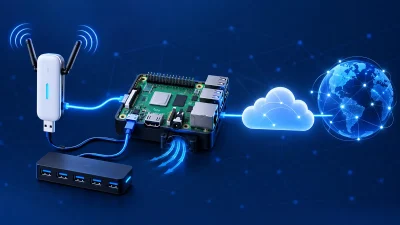
If you monitor 4G dongles properly, you know a proxy is unhealthy before a customer reports it. This guide shows you how to watch online state, signal, data use and IP changes, then route useful events to Telegram or a webhook.
The examples assume Huawei E3372 HiLink dongles connected to a Raspberry Pi or Linux box. If you are still assembling the hardware, start with our guide to building your own mobile proxy with 4G and Raspberry Pi, then return here once the proxies are serving traffic.
What you need before monitoring 4G dongles
You need four things:
- A stable label for every dongle, such as
rack-a-port-03orclient-east-02. Put the same label on the physical device, in your notes and in the proxy panel. - The expected fleet size and an owner for each alert. “One dongle offline” is actionable; “something changed” is not.
- Access to the box and the proxy credentials for a controlled test. Do not paste credentials or bot tokens into screenshots, tickets or chat.
- A Telegram chat or an HTTPS endpoint that can receive notifications. ProxyKite can route alerts through Telegram and webhooks, while the box itself only needs outbound internet access.
For the installation path, see the ProxyKite getting-started documentation. Use the same names there that you will use in your alert messages.
Step 1: Label every dongle and define its expected state
Why this matters: an alert is only useful when you can identify the affected hardware and the next action.
- Choose a short, permanent name for each dongle. Include location or USB-hub position, not a SIM number that may change.
- Record the name, physical port, proxy host and port, SIM data-plan reset date, and the person who handles that box.
- In the panel, check that each expected dongle is online and mapped to the right name.
- Decide what “healthy” means for your work. A proxy may be online but have no traffic, or it may be carrying traffic while signal quality is falling.
- Create an alert for an unexpected offline state. If a delay setting is available, use a short persistence window so one brief reading does not page you.
Success looks like this: you can read an alert such as rack-a-port-03 offline, locate that device without guessing, and test the correct proxy within a minute.
Step 2: Choose the signals that matter
Why this matters: monitoring every metric creates noise. Monitor the few changes that predict a failed proxy or an avoidable data bill.
| Signal | What to watch | Useful response |
|---|---|---|
| Online state | A dongle leaves the expected online state | Check power, USB seating, the hub and the box before touching the SIM |
| Signal quality | A sustained decline or a value outside your normal range | Check antenna placement, heat, local radio conditions and the modem status |
| Data used | A percentage of the SIM plan or an unexpected traffic spike | Review the active proxy, customer assignment and bandwidth limits |
| Public IP | An IP change after a planned rotation, or an unexpected change | Confirm the rotation event and test the new endpoint |
| Traffic activity | A normally busy proxy becomes quiet, or an idle one starts moving data | Compare with the expected schedule and investigate the account or task |
Treat signal strength as a trend, not a universal pass/fail number. The useful baseline is the range that normally works at your location with your antenna and carrier. For data, set warning levels below the carrier plan limit and use the dashboard’s live traffic view to identify which proxy is consuming the allowance.
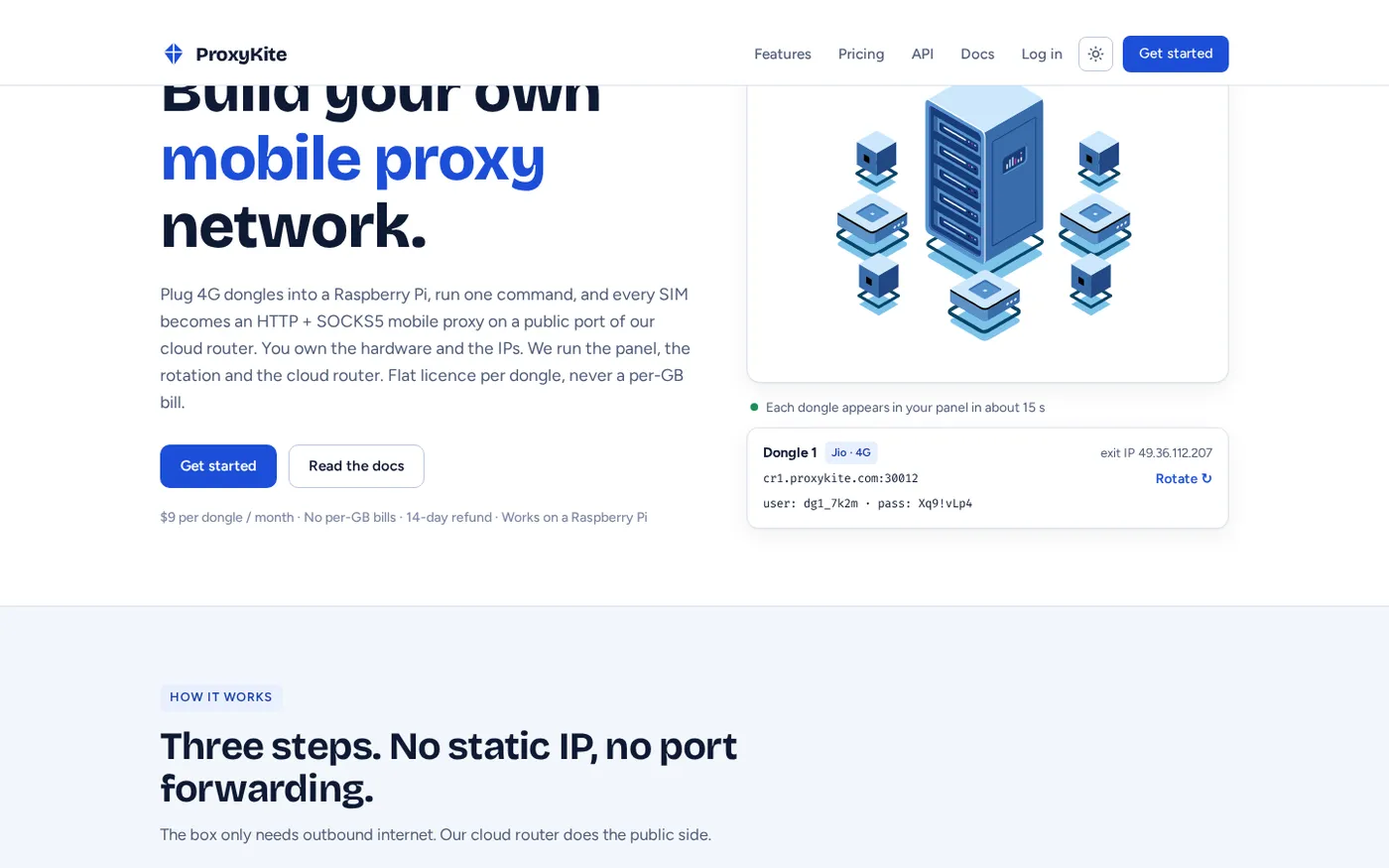
If your farm uses timed or on-demand rotation, record that expectation in the alert policy. A planned IP change is normal; an IP change with no corresponding rotation action deserves a test. The rotation links guide explains the supported rotation patterns.
Step 3: Configure Telegram alerts
Why this matters: Telegram is a fast way to reach the operator who is on call without building a separate status page.
The official Telegram Bot API uses HTTPS requests. Create a bot with Telegram’s @BotFather, add it to the chat that should receive alerts, and send it a first message. Keep the token private; anyone who has it can operate the bot.
Then configure the Telegram destination in your alert settings:
- Enter the bot token and destination chat ID where the panel asks for them.
- Select state-change events first: offline, back online, data threshold and IP change. Add traffic alerts only when they map to a real action.
- Give the alert a useful message format containing the dongle label, event, observed value, time and suggested next check.
- Save the destination and send one test alert.
If you need to validate the bot outside the panel, use environment variables rather than putting the token directly into a script:
export TELEGRAM_BOT_TOKEN='replace-with-your-token'
export TELEGRAM_CHAT_ID='replace-with-your-chat-id'

curl --fail-with-body -sS \
  "https://api.telegram.org/bot${TELEGRAM_BOT_TOKEN}/getMe"

curl --fail-with-body -sS -X POST \
  "https://api.telegram.org/bot${TELEGRAM_BOT_TOKEN}/sendMessage" \
  -H 'Content-Type: application/json' \
  -d "{\"chat_id\":\"${TELEGRAM_CHAT_ID}\",\"text\":\"Proxy farm alert test: rack-a-port-03\"}"
The first request should return a successful JSON response for the bot. The second should put a test message in the selected chat. Remove the variables from your shell session after testing with unset TELEGRAM_BOT_TOKEN TELEGRAM_CHAT_ID.
Success looks like this: a test reaches the right chat, contains a stable dongle label, and an operator can understand the next action without opening a terminal.
Step 4: Send events to a webhook
Why this matters: a webhook lets you connect dongle events to your incident log, shared dashboard, on-call system or internal automation.
Use an HTTPS endpoint that accepts POST requests. Protect it with authentication or a hard-to-guess path, and return a 2xx response quickly. If your application needs more work, put the event on a queue and process it after acknowledging receipt.
Set up the webhook in the alert settings, then send a test event. Do not write an integration against an assumed payload: log the first real event, inspect its fields, and version your parser around what your panel actually sends.
Your receiving service should:
- Verify the request is an HTTPS
POSTfrom the configured endpoint. - Validate the event before storing it. Require a dongle label and event type, and treat measurements as untrusted input.
- Deduplicate repeated deliveries using the event identifier if supplied, or a short hash of the event and timestamp.
- Record the received time and delivery result.
- Alert a human only for conditions that need action. A recovery event should close or annotate the original incident.
You can test your application’s request handling with a harmless sample shaped like this, using your own endpoint:
curl --fail-with-body -sS -X POST \
  'https://ops.example.com/hooks/proxy-farm' \
  -H 'Content-Type: application/json' \
  -d '{"source":"proxy-monitor","event":"test","dongle":"rack-a-port-03"}'
That command tests your receiver, not the exact ProxyKite event schema. Use the panel’s own test action to confirm the production path.
Success looks like this: the event appears once in your tool, the receiver returns 2xx, and a failed destination produces an observable retry or error for an operator to review.
Step 5: Verify a dongle with its proxy endpoint
Why this matters: “online” is a control-plane state. A small proxy request proves that the path a customer uses is working.
Run a controlled request through the affected proxy. For an HTTP proxy:
curl --fail-with-body -sS \
  --proxy 'http://USER:PASSWORD@HOST:PORT' \
  https://api.ipify.org
For a SOCKS5 proxy, use the SOCKS5 URL form:
curl --fail-with-body -sS \
  --proxy 'socks5h://USER:PASSWORD@HOST:PORT' \
  https://api.ipify.org
Replace the placeholders with a test credential and the exported proxy endpoint. Do not use a customer’s private target as your health check. The response should be an IP address from the SIM’s connection; store the result only if your monitoring policy permits it.
If the event was an IP change, compare the result with the previous value and the rotation action. ProxyKite supports on-demand rotation, rotation links and timers from 60 seconds to 7 days, with a sticky option, so your check should follow the behavior you selected rather than assume every IP changes on every request.
Success looks like this: the request completes through the named proxy, the returned IP matches the expected rotation state, and the check does not create customer traffic or expose credentials.
Step 6: Run a five-minute morning check
Why this matters: event alerts handle exceptions, but a short routine catches configuration drift and silent gaps in alert delivery.
Use the same order every morning:
- Compare the expected dongle count with the online count.
- Scan for offline, recently recovered or repeatedly changing devices.
- Review signal trends and data used against each SIM plan’s allowance.
- Look at live traffic insights for unexpected spikes and unusually quiet proxies.
- Send one controlled proxy request for each item that needs investigation.
- Confirm that Telegram or webhook delivery has had a recent successful test. Do not generate test noise every day; do this after changes or when delivery is uncertain.
- Record the action taken, such as reseating a USB connection, moving an antenna or reviewing a bandwidth limit.
Keep this check separate from customer credentials and customer targets. Your goal is to prove the farm is observable and that the proxy path works, not to exercise someone else’s application.
Success looks like this: in five minutes, you know which dongles need attention, whether the alert channel is working, and whether the issue is power, radio conditions, data usage or proxy routing.
Troubleshooting common alert problems
Telegram test does not arrive
Run getMe first. If it fails, check the token; if it succeeds, confirm that you started a chat with the bot, used the correct chat ID and did not block the bot. Test from the panel again after correcting the destination.
The same alert arrives repeatedly
Prefer state changes over polling messages. On the webhook side, deduplicate deliveries and keep an incident open until a recovery event arrives. If the condition is an expected rotation, label it as planned so an IP-change alert does not become an outage-style page.
Data numbers do not match the carrier portal
Check whether both systems use the same reset date and whether they count upload and download in the same way. Use the carrier’s plan counter for the billing limit, and use ProxyKite’s traffic insights to understand which proxy is using the data.
Signal alerts flicker
Avoid paging on one sample. Use a trend or persistence rule, then inspect antenna position, cable quality, heat and local signal conditions. A useful alert identifies a sustained change that needs an operator, not every normal fluctuation.
An online dongle fails the proxy test
Check the exported host, port and authentication format first. Then test the box’s outbound internet path and the physical USB connection. ProxyKite’s proxy formats documentation is the reference for HTTP and SOCKS5 endpoint formats.
Doing it with ProxyKite vs DIY scripts
DIY scripts can poll a process and send a message, but you must maintain the naming, state handling, rotation logic, authentication and customer-facing controls yourself. That becomes a second operations system beside the proxy system.
ProxyKite puts the routing and operator features in one service for your own dongles: HTTP and SOCKS5 endpoints, on-demand or timed rotation, live traffic insights, bandwidth limits, SMS tools, webhooks, Telegram alerts, exports, sub-users and white-label controls. It does not supply IPs, SIM cards, dongles or bandwidth; you bring the hardware and SIM data plans.
The licence is $9 per dongle per month, with no per-GB charge because traffic uses your own SIM data. If you run 50 or more dongles, contact ProxyKite for volume pricing and help planning the fleet.
FAQ
What should I monitor on a 4G dongle?
Start with online state, signal trend, data used, public IP changes and traffic activity. Those signals tell you whether the hardware is reachable, the radio link is healthy, the SIM plan is being consumed as expected and the proxy path is serving traffic.
Can I receive Telegram alerts without opening a port?
Yes. The box can send outbound requests to the alert service, so you do not need a static IP or an inbound port for this workflow. Keep the bot token private and test the destination after you configure it.
How often should I check a 4G proxy farm?
Use event alerts for state changes and threshold crossings, then run a short morning review. The exact schedule depends on how quickly your work needs recovery, how often you rotate IPs and how much data each SIM plan allows.
How do I monitor a large dongle fleet?
Give every dongle a stable label, group alerts by box or location, and send events to a webhook that can deduplicate and assign incidents. ProxyKite supports sub-users, white-label controls and fleet discussions for operators running 50 or more dongles.