ERR_TUNNEL_CONNECTION_FAILED means your browser could not create the HTTPS tunnel through its configured proxy. This guide shows what CONNECT does, how to separate a bad browser setting from a proxy-side failure, and how to prove the failing hop with curl -v. Start with Step 1 if you are browsing; jump to Step 4 if you operate the proxy.
What a CONNECT tunnel is
When you open an HTTPS website through an HTTP proxy, Chrome does not send the page request immediately. It first opens a connection to the proxy and asks it to create a tunnel to the destination, usually with a request like this:
CONNECT example.com:443 HTTP/1.1
Host: example.com:443
The proxy then makes its own connection to example.com:443. A successful 2xx response means the proxy switches to blind forwarding, after which the browser performs the TLS handshake with the destination through that tunnel. The proxy normally cannot read the HTTPS page just because it created the tunnel.
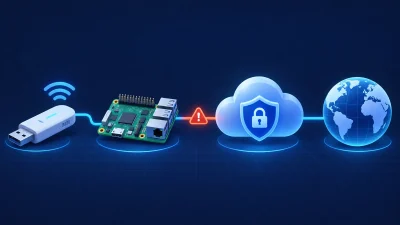
This is the purpose of the HTTP CONNECT method in RFC 9110. Any response other than a successful 2xx response means the tunnel was not formed, so Chrome reports a tunnel error rather than showing the website.
| Point of failure | What it usually means | What to inspect |
|---|---|---|
| Before the proxy responds | Wrong host or port, blocked port, firewall, or an unreachable proxy | Browser endpoint, nc, or the first lines of curl -v |
Proxy response is 407 | Proxy authentication is missing or rejected | Username, password, and authentication mode |
Proxy response is 403 | The proxy policy refused the destination or port | Allow/block rules and permitted CONNECT ports |
Proxy response is 502 or 504 | The proxy could not reach or resolve the destination | Proxy-side DNS, route, and upstream logs |
200 Connection established, then TLS fails | The tunnel worked; the failure is now TLS, certificates, or the target | The later curl output and browser certificate error |
That last distinction matters. Do not change DNS or reinstall Chrome while the proxy is returning a clear policy or authentication response. First identify the stage that failed.
Common causes of ERR_TUNNEL_CONNECTION_FAILED
The message is broad. In a normal user setup, the most common causes are:
- A manual proxy, PAC file, VPN, or proxy extension points to an old host or port.
- The browser is using an HTTP proxy as if it were a SOCKS5 proxy, or the reverse.
- The proxy expects a username and password, but Chrome has stale or missing credentials.
- The proxy allows ordinary web requests but blocks CONNECT to a particular destination or port.
- The proxy can be reached, but its own DNS resolver or upstream route cannot reach the target.
- A local firewall, office network, VPN, or security product blocks the proxy port.
If only one website fails, suspect a destination rule, target DNS result, or target-specific network path. If every HTTPS website fails but direct browsing works, focus on the proxy endpoint, authentication, and CONNECT policy.
What you need before troubleshooting
Collect these details before changing several settings at once:
- The exact proxy host, port, and type: HTTP, HTTPS proxy, or SOCKS5.
- The authentication method and a current test username, if the proxy requires one.
- One target that fails and one known-good HTTPS target such as
https://example.com/. - A terminal with
curl. The curl command reference documents--proxy,--proxy-user,--proxytunnel, and verbose mode. - Access to the proxy dashboard or service log if you operate the proxy.
Redact usernames, passwords, session tokens, public proxy credentials, and customer destinations before sharing command output. A verbose trace is useful, but it can reveal more than you expect.
Step 1: Check whether the browser should use a proxy
Why this helps: it tells you whether the failure is caused by a stale local configuration or by a proxy you intentionally need.
Open Chrome settings and search for proxy, or open chrome://settings/system and use the link to your computer’s proxy settings. Check manual settings, an automatic configuration script, and extensions that can change proxy behavior. Also check whether a VPN is applying a separate proxy.
On Windows, the current path is Settings → Network & internet → Proxy. Microsoft documents automatic detection, setup scripts, and manual proxy entries in its Windows proxy guide. On macOS, use System Settings → Network → your connection → Details → Proxies. Linux desktop proxy controls vary by desktop environment, so inspect the active network settings and the HTTP_PROXY, HTTPS_PROXY, and ALL_PROXY environment variables in the terminal.
If you do not need a proxy, temporarily turn off the manual entry or PAC file and test again. Disable a proxy-switching extension for the test, or use a clean browser profile. Do not remove a company-managed setting without permission.
Success looks like this: direct browsing works, and the error disappears when the proxy is bypassed. If direct browsing also fails, fix the underlying network connection first; the proxy is not yet the main suspect.
Step 2: Verify the proxy type, host, port, and credentials
Why this helps: the browser must speak the protocol the endpoint actually supports before it can send CONNECT.
Check the endpoint character by character. A proxy address is not the same as the website URL you are visiting. An HTTPS destination can be reached through an HTTP proxy, so do not change http://proxy-host:port to https://proxy-host:port merely because the target starts with https://.
For a SOCKS5 endpoint, select SOCKS5 in the client or use the SOCKS5 format supported by that client. For an HTTP endpoint, use the HTTP proxy field. If the proxy uses user-and-password authentication, re-enter both values and confirm that there is no leading or trailing space. If a password contains punctuation, enter it in the browser’s credential fields rather than pasting an unescaped URL containing the password.
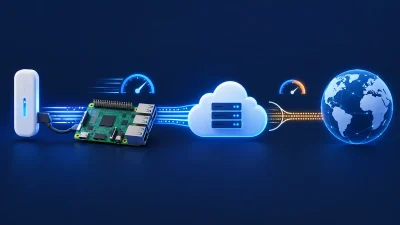
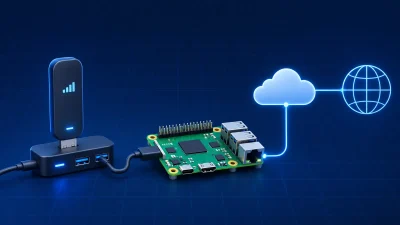
Proxy users running their own mobile fleet should also check that the exported format matches the application. ProxyKite provides HTTP and SOCKS5 endpoints with user/password or IP-whitelist authentication; its proxy formats guide shows the expected host:port and credential layouts. Its reference setup uses Huawei E3372 HiLink dongles on a Raspberry Pi or Linux box, while the cloud route provides a public endpoint without requiring a static IP or inbound port forwarding.
If you are unsure which part of a proxy string belongs in each field, see Proxy Format Explained for a host, port, username, and password breakdown.
Success looks like a proxy authentication prompt that accepts the credentials, or a request that reaches the destination. A 407 Proxy Authentication Required response means the proxy was reached; concentrate on authentication rather than DNS.
Step 3: Test one target and the DNS path
Why this helps: comparing two destinations separates a general proxy failure from a destination-specific policy or resolution problem.
First test an HTTPS destination through an HTTP proxy. Replace the placeholders, and do not copy real credentials into a support ticket:
curl -v \
  --proxy "http://PROXY_HOST:PROXY_PORT" \
  --proxy-user "USERNAME:PASSWORD" \
  "https://example.com/" \
  -o /dev/null
The -v output should show a connection to the proxy, a CONNECT example.com:443 request, a successful proxy response, and then TLS details. If you want to avoid putting a password in shell history, omit --proxy-user and let the proxy challenge you, or use your operating system’s safer credential mechanism.
Now repeat with the actual failing destination. If example.com succeeds and the real site fails, inspect the proxy’s allow/block rules, the destination port, and the proxy-side DNS result. The target hostname in CONNECT is normally resolved by the proxy as part of making its upstream connection, so changing your laptop’s DNS server may not change that result.
For a SOCKS5 proxy, use remote DNS resolution with socks5h when supported by your client:
curl -v \
  --proxy "socks5h://PROXY_HOST:PROXY_PORT" \
  --proxy-user "USERNAME:PASSWORD" \
  "https://example.com/" \
  -o /dev/null
Also check that your machine can resolve and reach the proxy itself:
getent hosts PROXY_HOST
nc -vz PROXY_HOST PROXY_PORT
On systems without getent, use nslookup PROXY_HOST or dig PROXY_HOST. These commands test the proxy endpoint, not whether the proxy can resolve every destination. If name lookup for the proxy fails, correct the endpoint or local DNS first. If TCP connectivity fails, investigate the local firewall, VPN, office network, or the proxy listener.
Success looks like the same endpoint works in curl and Chrome. If curl succeeds but Chrome fails, the service is probably healthy and Chrome is using a different proxy rule, credential, extension, or protocol setting.
Step 4: Fix the proxy when you run it
Why this helps: a browser cannot repair a proxy that is listening on the wrong interface, refusing CONNECT, or unable to reach the upstream destination.
Start on the proxy host. Confirm that the service is listening on the intended interface and port:
ss -lntp | grep ':PROXY_PORT'If it listens only on 127.0.0.1, remote clients cannot use it. If it listens on the expected interface but clients cannot connect, check the host firewall and any cloud firewall or security-group rule for that port. Confirm that the rule allows only the clients and ports you intend to expose.
Next, test from the proxy host itself. A local success followed by a remote failure points to firewall, routing, or bind-address configuration. A local failure points to the proxy process, its upstream network, DNS, or policy:
curl -v \
  --proxy "http://127.0.0.1:PROXY_PORT" \
  "https://example.com/" \
  -o /dev/null
Read the proxy log at the same time. Look for the requested destination, the CONNECT result, authentication decisions, DNS errors, upstream connection timeouts, and policy matches. Do not broaden the allowed port list just to hide the error; RFC 9110 notes that unrestricted CONNECT to arbitrary ports creates abuse risk. Keep CONNECT limited to the destinations and ports your legitimate workload needs.
If you run a 4G proxy farm behind carrier NAT, an inbound port-forwarding design may fail even when the dongle has mobile data. A routing service such as ProxyKite instead uses outbound connectivity from the Raspberry Pi or Linux box and exposes the proxy through a cloud route. See the CGNAT proxy guide and the ProxyKite feature overview for that architecture.
Step 5: Read the curl trace and proxy log together
Why this helps: each side sees a different half of the connection. The client sees the proxy handshake; the proxy sees the upstream attempt.
Use this compact interpretation when comparing the two records:
| Evidence | Likely next action |
|---|---|
No Connected to PROXY_HOST line | Fix proxy DNS, host, port, route, or local firewall |
| TCP connects, but no HTTP response | Inspect proxy process, listener, TLS-to-proxy mode, or network filtering |
407 from the proxy | Correct credentials or the proxy authentication configuration |
403 or another policy response | Check destination rules and permitted CONNECT ports |
502, 504, or an upstream timeout | Check proxy-side DNS, mobile data, route, and target reachability |
200 Connection established, then certificate/TLS failure | Debug TLS or certificate interception; the CONNECT step worked |
Do not confuse an HTTP proxy with an HTTPS proxy. In the first case, curl makes an ordinary HTTP connection to the proxy and uses CONNECT for the HTTPS destination. In the second, curl first negotiates TLS with the proxy itself. The proxy address scheme and the client setting must match.
Step 6: Reapply the working settings in Chrome
Why this helps: a successful command proves the endpoint, but Chrome can still select a different rule through a PAC file, extension, profile, or operating-system setting.
Copy only the working host, port, protocol, and authentication method into the intended proxy configuration. Remove duplicate manual entries and check that the bypass list does not accidentally route the failing domain somewhere else. Restart Chrome after changing a system proxy or VPN, then test a fresh tab.
If the endpoint works in curl but not in Chrome, test an Incognito window. If that works, review extensions in the normal profile. If both fail, compare Chrome’s active system settings with the command you ran: an HTTP-versus-SOCKS mismatch and a PAC file are common differences.
Finally, test two HTTPS sites and then the original URL. A working example.com request proves the basic tunnel; it does not prove that every destination is permitted or reachable through the same proxy. Keep the successful curl command, redacted trace, timestamp, target hostname, and proxy response code for the next troubleshooting session.
Verify the fix
You have fixed the problem when all of the following are true:
- The proxy host resolves and its port accepts a TCP connection.
curl -vreaches the proxy and receives a successful CONNECT response for an allowed HTTPS target.- The same proxy type, host, port, and credentials are configured in Chrome.
- A second HTTPS target works, so the result is not specific to one site.
- The original page loads without an extension or alternate PAC rule changing the route.
If the original target still fails while two known-good targets work, treat it as a target policy, target DNS, destination port, or target-side issue. The tunnel itself is working.
FAQ
What does ERR_TUNNEL_CONNECTION_FAILED mean?
It means Chrome did not complete the proxy tunnel required for the HTTPS connection. The proxy may be unreachable, may reject authentication or the destination, or may be unable to connect upstream. Test the proxy with curl -v to see which stage failed.
Why does Chrome work without the proxy but fail with it?
Direct browsing skips the proxy, while proxied browsing adds a connection to the proxy and a CONNECT request to the destination. Check the proxy host, port, type, credentials, PAC file, and any extension that changes routing. A successful direct request does not prove that the proxy can reach the same site.
Is ERR_TUNNEL_CONNECTION_FAILED always a DNS problem?
No. Wrong endpoints, authentication, blocked CONNECT ports, firewalls, and upstream routing can all produce a tunnel failure. If the proxy host itself does not resolve, fix local DNS; if the proxy responds with 403, 407, 502, or 504, use that response and the proxy log to choose the next check.
What is the difference between ERR_TUNNEL_CONNECTION_FAILED and ERR_PROXY_CONNECTION_FAILED?
They point to different parts of the proxy path, although the exact browser error can depend on where the failure is detected. A proxy connection failure generally means Chrome could not establish the client-to-proxy connection; a tunnel failure usually appears while creating the connection from the proxy to the HTTPS destination. curl -v gives more actionable evidence than the browser label alone.
How do I test an HTTPS proxy with curl?
Use curl -v --proxy "http://PROXY_HOST:PROXY_PORT" "https://example.com/" -o /dev/null, adding --proxy-user only when required. Look for the proxy connection, the CONNECT request, a successful response, and the later TLS handshake. Redact credentials and tokens before sharing the trace.