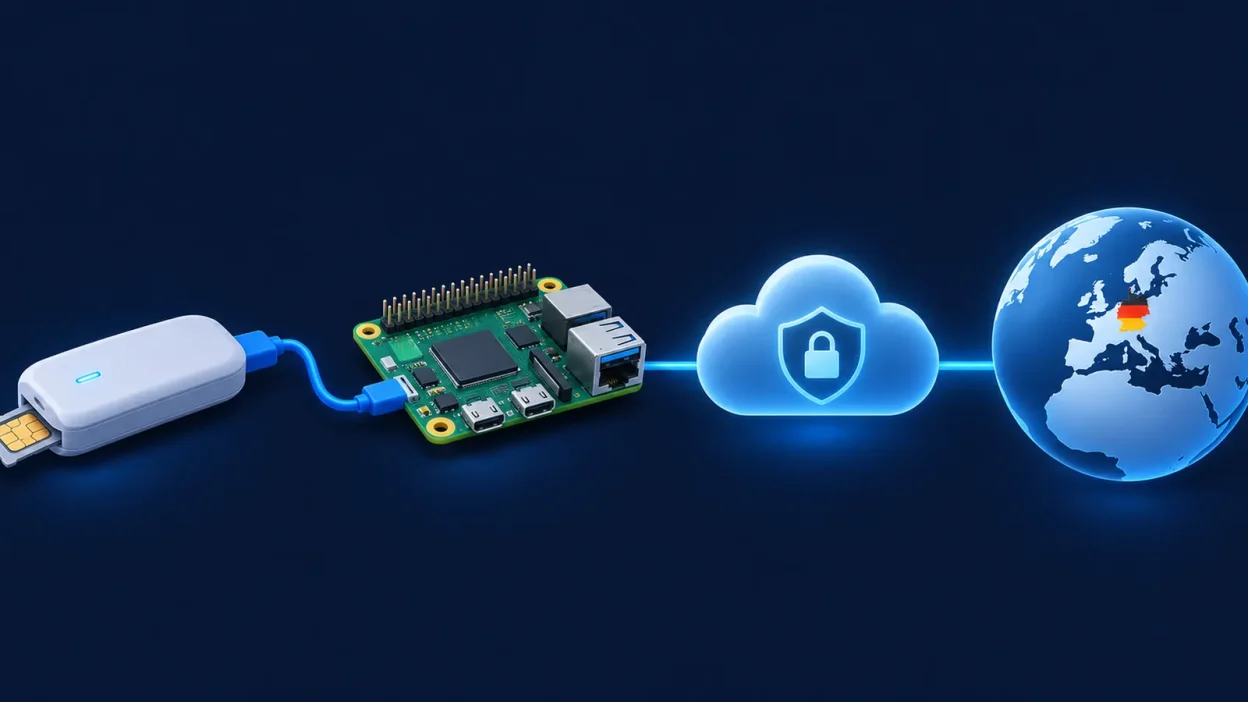
If you are searching for a mobile proxy germany setup, the important decision is where the dongle and SIM are physically operating. Put a German SIM in a compatible 4G dongle located in Germany, then use a Raspberry Pi and cloud routing to make that mobile connection usable as an authenticated proxy. This guide covers the practical setup from SIM registration to the first HTTP and SOCKS5 tests.
What you need before starting
Start with one complete path. It is easier to prove one SIM, one dongle and one proxy than to debug a whole farm at once.
| Component | Practical choice | Check before you begin |
|---|---|---|
| Mobile connection | German SIM with an active data plan | The plan permits use in a modem or router and has enough data for your workload |
| Dongle | Huawei E3372 HiLink or a similar Huawei HiLink model | The SIM fits, the device is unlocked for the chosen network, and HiLink mode is available |
| Linux host | Raspberry Pi with a supported Linux installation | The box has outbound internet and current updates |
| USB power | Direct USB for one dongle; powered hub for several | The hub has its own suitable power supply |
| Proxy software | ProxyKite licence | Keep the licence key private and available for the installer |
| Test client | A laptop, server or automation host on another network | It can run curl and reach the generated proxy endpoint |
ProxyKite supplies software and cloud routing. You supply the hardware, SIM and mobile data plan. The licence does not include a German IP address, a SIM, a dongle or bandwidth.
For more background on the full architecture, see how to build your own mobile proxy with 4G and Raspberry Pi. This guide narrows that design to a German mobile exit.
Why the hardware must be in Germany
The country of a mobile proxy comes from the mobile network connection, not from the country where you manage the dashboard. A German SIM in a dongle that is connected to a German cell site gives you the right starting point for a German mobile exit. A Raspberry Pi in another country, a German VPS, or a German browser session does not turn a non-German SIM into a German mobile proxy.
ProxyKite separates the local mobile connection from the public endpoint. The dongle connects out through the Pi, and the cloud router publishes the proxy endpoint. The box does not need a static IP or an inbound port, so the local broadband connection can sit behind CGNAT.
This also means you need a real operating location in Germany. If your team, office or equipment is not there, arrange the hardware and SIM through a person or business that is authorised to operate them. Do not use somebody else’s identity or attempt to avoid a carrier’s registration rules.
Step 1: Register the SIM in your own name
German prepaid mobile services require identity verification before activation. The Bundesnetzagentur explains that prepaid providers must check the future account holder’s details against an identity document before a prepaid SIM is activated.
Use the carrier’s official activation route and provide accurate details for the person or business that will hold the connection. The exact verification method depends on the carrier and plan. Keep the activation confirmation and the account recovery details with your operations records.
Why this matters: an unactivated SIM cannot provide a usable mobile route, and a SIM registered to the wrong person creates an ownership and compliance problem that proxy software cannot fix.
After activation:
- Put the SIM in a phone or the carrier’s supported device long enough to confirm that mobile data is active.
- Confirm that the plan has a working data allowance and that the account is not waiting for a top-up or identity check.
- Check the carrier’s terms for modem, router, tethering and automated traffic use.
- Record the SIM label and the physical location where the dongle will operate.
Success looks like a carrier-activated SIM that can open a normal HTTPS page over mobile data. Do not continue with a SIM that only shows signal bars but has no data session.
Step 2: Choose a plan for steady proxy traffic
The right German plan is the one that fits your traffic and explicitly allows your equipment and use case. Avoid choosing only by headline price or advertised peak speed.
Check these points before you put the SIM into a farm:
- Modem use: confirm that the carrier permits the SIM in a USB modem or router. Some plans are intended only for a phone or a named device.
- Data allowance: estimate the monthly traffic for one dongle, then leave room for retries, updates and testing. ProxyKite does not charge per gigabyte, but the SIM provider’s data allowance still applies.
- Coverage at the installation address: test the exact room, not only the carrier’s national coverage map. Indoor signal and congestion can differ by location.
- Renewal and account access: make sure the person responsible for the SIM can renew the plan, view usage and complete any future verification.
- SMS support: choose a plan with SMS if you need the dongle’s inbox for carrier notices, QA or operations.
- APN requirements: note the carrier’s APN instructions. HiLink normally handles the connection, but a carrier-specific APN may still be required.
Do not make a promise about speed, uptime or a permanent IP based on the plan name. A mobile address can change when the session reconnects, and the useful measure is how the finished proxy performs for your authorised workload at the installation site.
Step 3: Assemble the E3372 and Raspberry Pi
The physical layout determines whether later software testing is meaningful. Build the smallest stable setup first.
- Power down the E3372 and insert the activated German SIM in the orientation marked on the dongle.
- Connect the E3372 directly to the Raspberry Pi for the first test. Add a powered USB hub only when you are ready to add more dongles.
- Connect the Pi to outbound internet with Ethernet or Wi-Fi. It does not need an inbound port.
- Open the E3372 HiLink page from the Pi’s network. On the reference device this is commonly
192.168.8.1. - Confirm that the HiLink page shows the SIM registered and a connected data session.
Success looks like the Pi can reach the dongle’s management page and the dongle can reach the internet through the German mobile network. If the page does not open, fix the local USB, SIM, APN or network issue before installing proxy software.
For a larger build, label every dongle and hub port with the SIM identifier and intended use. A powered hub is part of the design for several sticks; it is not a substitute for a suitable power supply. The Huawei E3372 proxy guide covers the HiLink-specific checks in more detail.
Step 4: Install ProxyKite on the Linux box
Once the mobile session works locally, install the connector that links the Pi to the cloud router. The installer needs a licence key from your ProxyKite panel.
Update the box, then run the installer with your real key in place of the placeholder:
sudo apt update && sudo apt upgrade -y
curl -fsSL https://proxykite.com/install.sh | sudo bash -s -- --key YOUR-LICENCE-KEY
Do not publish the key in a screenshot, tutorial, repository or shared shell history. If it is exposed, replace or revoke it through the account controls.
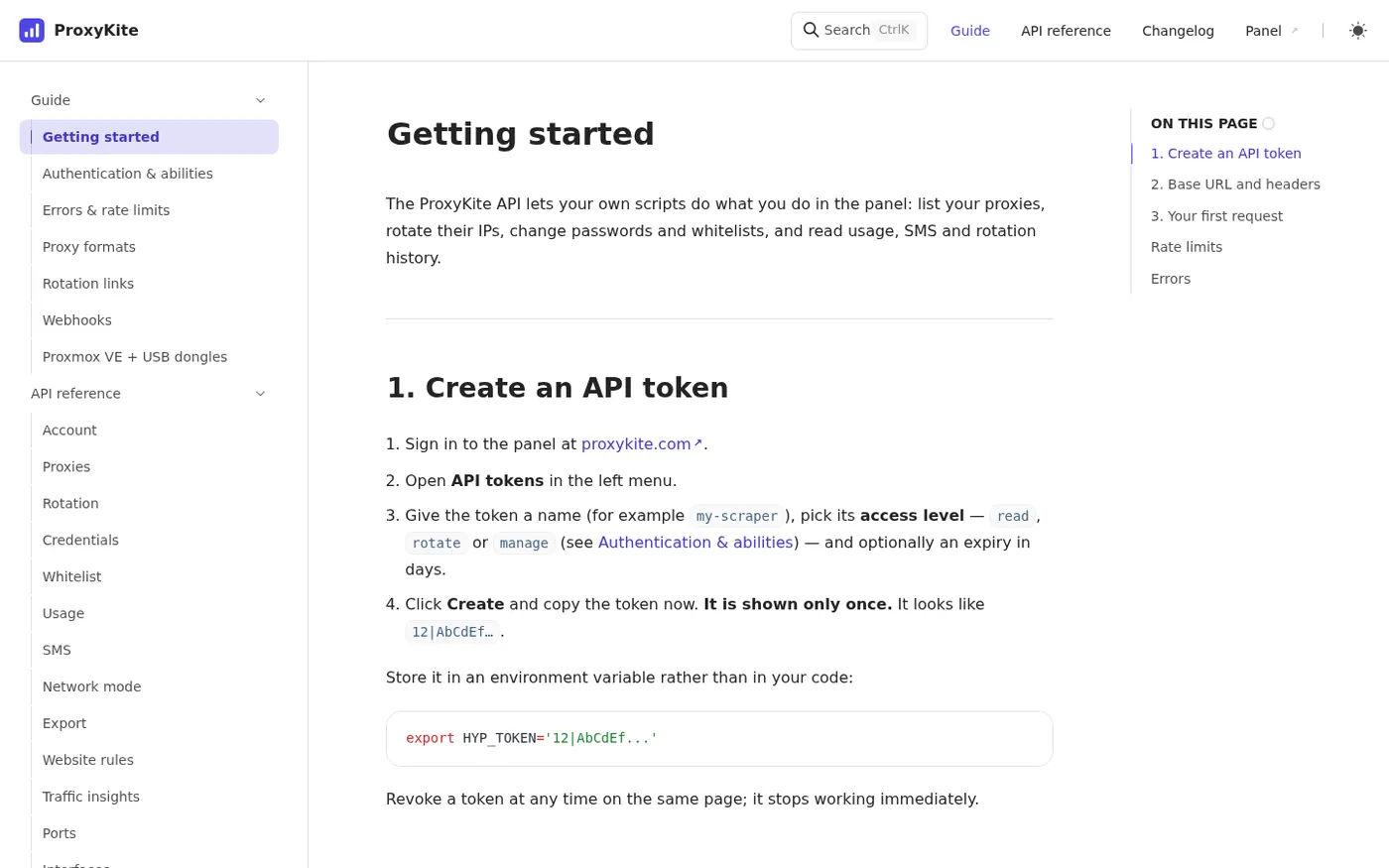
After the command completes, open the ProxyKite panel and check that the Linux box is visible. The connected E3372 should appear as a dongle or proxy candidate. Give it a useful private label, then create or assign a proxy.
Success looks like the node and its dongle are online in the panel. The cloud router supplies the public side, so you should not need to configure port forwarding on the German network or on the Pi’s local router.
Step 5: Create and test the German proxy
The panel gives the proxy a public host, port and credentials. Use the exact values it provides; do not invent a port or copy credentials from another dongle.
First test HTTP from a client that is not the Raspberry Pi itself:
curl -x 'http://USER:PASS@HOST:PORT' https://api.ipify.orgThen test SOCKS5 with DNS resolution through the proxy:
curl -x 'socks5h://USER:PASS@HOST:PORT' https://api.ipify.orgThe response should be an address reached through the German mobile route. A successful TCP connection alone is not enough: the request must authenticate, complete HTTPS, and show the expected egress path.
If your password contains characters such as @, :, # or /, use the exported URL from the panel or percent-encode reserved characters. Keep proxy credentials out of shell history and application logs. The proxy format guide lists the supported HTTP, SOCKS5 and export formats.
Step 6: Rotate the IP and apply operating limits
Test rotation only after an ordinary request succeeds. A rotation changes the mobile data session; existing connections can therefore belong to the old path and should be allowed to finish or be retried safely.
You can rotate from the panel, use a rotation link, or choose a timer. To test a rotation link, send a POST request with the token from the panel:
curl -X POST 'https://proxykite.com/r/<rotation-token>'Treat the full rotation link like a password. Anyone who has it can request a rotation for that proxy. The rotation links documentation explains the safe request methods and responses.
After the request returns, repeat both proxy tests and record the result. If you need stable sessions, use the sticky option for the workflow instead of rotating during a login, upload or other stateful task.
Before connecting another user or automation job, set:
- authentication credentials or an IP whitelist;
- a daily, weekly or monthly bandwidth limit appropriate to the SIM plan;
- website allow/block rules for the intended authorised work;
- alerts or webhooks for useful status changes;
- a label that identifies the German location without exposing private SIM details.
Use the proxy only for systems you own or are authorised to test. A German mobile exit changes request routing; it does not grant permission to bypass account controls, access another person’s data, send unsolicited messages or ignore a target website’s rules.
Verify the finished setup
Run this checklist from a separate network and save only the operational details you need:
- The SIM is activated and registered to the correct person or business.
- The E3372 HiLink page shows an active German mobile data session.
- The Raspberry Pi can reach the dongle and has outbound internet.
- The ProxyKite panel shows the node and proxy online.
- An authenticated HTTP request succeeds through the generated host and port.
- An authenticated
socks5hrequest succeeds with DNS routed through the proxy. - A rotation returns a result, and a new test request completes afterward.
- Credentials, quotas, website rules and alerts match the authorised workload.
For a farm, repeat the checklist per dongle. One working German SIM does not prove that a second SIM, hub port or carrier session is configured correctly. Add devices one at a time and keep the labels consistent.
Troubleshooting
The SIM is activated but the dongle has no data
Test the SIM in an approved device, then check the carrier account, APN and data allowance. If it works in a phone but not the E3372, check that the plan permits modem use and that the dongle is unlocked for that network.
192.168.8.1 does not open
Check the USB connection and confirm that the HiLink device is visible to Linux. Reconnect the dongle, inspect the Pi’s network interfaces and check for a local address conflict. For several dongles, add a powered hub and connect only one device while diagnosing.
The node is online but the proxy request fails
Copy the host, port, username and password again from the panel. Test HTTP first, then SOCKS5. A successful connection to the public port does not prove that credentials or the mobile route are correct.
Rotation returns an error
Confirm that you are using the current rotation link and a POST request, and wait for the previous rotation to finish before starting another. If the mobile session cannot obtain a new address, check the SIM plan, signal and carrier session at the German installation site.
Several dongles disappear when the farm grows
Reduce the setup to the last known-good device, then add one dongle at a time. Check the powered hub, cable connections and Pi power supply, and record which physical port belongs to each SIM. The powered USB hub guide covers the power-planning side of a multi-dongle build.
FAQ
Can I run a German mobile proxy from outside Germany?
You can manage the panel from anywhere, but the dongle and German SIM need to operate in Germany for the mobile network exit to be German. A German VPS or remote dashboard does not replace the local mobile connection.
Do I need a German static IP or port forwarding?
No. The Raspberry Pi only needs outbound internet to connect to the cloud router. The public host and port are provided by the routing layer, which is why the local box can work behind CGNAT.
Can I use any German SIM in a Huawei E3372?
Use a SIM and plan that are activated in the correct name and explicitly suitable for modem or router use. Confirm the carrier’s APN, data allowance, SMS needs and device restrictions before deploying it.
How much does ProxyKite cost for one German dongle?
The ProxyKite per-dongle licence is $9 per dongle per month, with no ProxyKite per-GB charge. You bring the E3372, Raspberry Pi, SIM and mobile data plan; contact ProxyKite if you are planning a larger fleet or reseller setup.
Can I resell the German mobile proxy?
Yes, if you have permission to operate the SIMs and your customer workflow complies with the carrier’s terms and applicable law. ProxyKite includes sub-users, quotas and white-label features, so a reseller can assign proxies without handing out the main account credentials.