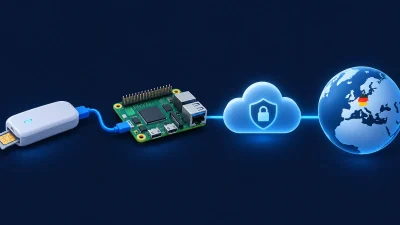
A usa mobile proxy is a 4G/LTE connection whose exit traffic comes from a dongle and SIM physically operating in the United States. This guide shows how to choose a compatible setup, install it on a Raspberry Pi or Linux box, and verify the US exit IP before sending real traffic.
Why the dongle must be in the US
The cellular session is created where the dongle is located. A cloud router can expose that connection to the internet, but it cannot turn a dongle in another country into a US mobile connection. If you need a US mobile exit, place the dongle and its active US SIM at the US address where you want to operate it.
That location also affects the result you get from IP geolocation. A carrier may register an address in a nearby city, a regional hub, or another place in its network. Treat the city as a deployment target, not as a guaranteed label for every IP.
Choose the location in this order:
- Pick an address where you can legally install, power, and maintain the equipment.
- Check the carrier’s coverage map for that exact address. The FCC National Broadband Map is a useful second reference, but its mobile coverage data is modelled and does not show indoor performance.
- Test the actual dongle and SIM at that address before buying a large batch.
- Put separate dongles in separate metros if your work genuinely needs exits from more than one location.
ProxyKite supplies software and cloud routing. You provide the compatible dongle, US SIM, data plan, and internet-connected Linux box. The licence is $9 per dongle per month, with no ProxyKite per-GB charge; the traffic uses the data allowance on your SIM.
Check bands before you buy the stick
The Huawei E3372 is a family of regional variants, not one universal radio configuration. Compare the exact model suffix and its published LTE bands with the network and plan you intend to use. Huawei’s E3372 specification page lists the model’s radio and interface details, but the page also warns that specifications can vary by actual product.
Use the carrier’s current compatibility process as the final check. For example, AT&T publishes these LTE bands for its network: 2, 4, 5, 12, 17, 29, 30, and 66. Its 4G LTE network guidance also says a compatible LTE device, eligible data plan, and coverage are all required. T-Mobile lists LTE bands 2, 4, 5, 12, 66, and 71 in its network frequencies guide.
| Network check | What to compare | Practical decision |
|---|---|---|
| AT&T | Exact dongle bands against LTE 2, 4, 5, 12, 17, 29, 30, and 66 | Ask the provider whether the exact modem and plan are accepted before activation. |
| T-Mobile | Exact dongle bands against LTE 2, 4, 5, 12, 66, and 71 | Use the carrier’s device checker and confirm the plan supports a data device. |
| Verizon | Device ID/IMEI eligibility and supported LTE technology | Use Verizon’s BYOD compatibility guidance rather than assuming an imported E3372 will activate. |
Do not treat a band match as a promise of service. The modem also needs compatible firmware, the SIM must be provisioned for that type of device, and the address must have usable coverage. A US-market or otherwise carrier-approved variant is usually easier to validate than an unknown import.
If you are comparing dongles, the Huawei E3372 proxy guide explains the HiLink requirement in more detail. ProxyKite’s reference hardware is the Huawei E3372 HiLink, although similar Huawei HiLink models may work.
Read the data plan terms
Use a plan that is explicitly intended for a hotspot, tablet, router, IoT device, or other data-only equipment. Do not move a phone-only plan into a USB modem and assume that it is permitted. AT&T, for example, offers DataConnect plans for compatible LTE data-only devices, while its service terms still govern how the plan may be used.
Before ordering a SIM, check these points in the plan documents or with the provider:
- Device eligibility: Is a USB modem accepted? Is an IMEI or device category check required during activation?
- Network access: Which LTE bands and technologies are supported at your exact address?
- Allowance: What is the monthly high-speed data allowance? What happens after it is used?
- Hotspot and tethering rules: Are they included, limited, or excluded?
- Traffic rules: Does the acceptable-use policy permit automated requests, proxying, resale, or other traffic patterns you plan to run?
- APN and activation: Do you need a specific APN, account address, or manual activation step?
- SMS: If you need the SIM to receive carrier notices or other operational messages, does the plan and device support SMS?
- Renewal and cancellation: When does billing renew, and how do you stop the line?
Keep the account in the correct name and follow the provider’s terms. A data plan that connects in a phone is not automatically suitable for a proxy dongle. The safest test is to ask the carrier about the exact device category before you buy several SIMs.
Step 1: Prepare the US box and hardware
Why: ProxyKite needs a Linux box that can see the HiLink dongle over USB and reach the internet over an ordinary outbound connection.
For one or a few dongles, prepare:
- A compatible Huawei E3372 HiLink with the US SIM installed.
- A Raspberry Pi or Debian/Ubuntu Linux box with SSH access and outbound internet.
- A powered USB hub for multiple dongles. Avoid putting several sticks on an unpowered hub.
- A ProxyKite account and licence key created from the panel’s node setup screen.
- A place with ventilation, stable power, and a cellular signal you can test.
Insert the SIM according to the dongle’s markings. If the SIM has a PIN lock, remove it or make sure the modem can be configured to enter the PIN. Connect one dongle directly to the Raspberry Pi first. This makes it easier to separate a SIM or signal problem from a USB power problem.
On a Debian-based box, install the small utilities used to identify the modem:
sudo apt-get update
sudo apt-get install -y curl usb-modeswitch usbutils
lsusb | grep -i huawei
ip -br link
Success looks like: lsusb shows a Huawei device and ip -br link shows a new USB network interface, often named something like enx.... The exact name is different on each machine.
Step 2: Confirm HiLink mode and mobile data
Why: ProxyKite expects the dongle to expose its HiLink network interface. A stick that remains in storage or modem mode will not present the same interface.
Wait briefly after plugging in the dongle, then run the checks again:
lsusb
ip -br link
Open the dongle’s local management page from the Linux box or another device on the same local network if your model provides one. Check that the SIM is recognised, the APN is correct for your plan, and the modem has registered on LTE. Use the carrier’s APN instructions rather than guessing an APN from a different plan.
If the USB device is visible but no network interface appears, install or re-run usb-modeswitch, unplug the stick, and reconnect it. If it still does not switch, verify that the exact model is HiLink-compatible and that the box is using a normal Linux kernel with USB networking support.
Success looks like: the dongle has a working data session in its own management interface and Linux can see the USB network interface. Do not move to a fleet-sized hub until one stick passes this test.
Step 3: Install ProxyKite on the Linux box
Why: The agent reads the local HiLink interface and connects it to ProxyKite’s cloud router. The box does not need a static public IP or an inbound port.
In the ProxyKite panel, create a box from the node setup page and copy the licence key. On the Linux box, run the installer as root, replacing the placeholder with your own key:
curl -fsSL https://proxykite.com/install.sh | sudo bash -s -- --key XXXX-XXXX-XXXX-XXXXKeep the key private. Run the command only on the box you own or administer, and do not paste a real key into a public issue or script repository.
After the install, return to the panel and wait for the box and dongle to register. If you connected one dongle directly, it should be possible to identify the new proxy by its host, port, and connected device in the panel. Add further dongles one at a time after the first one works.
Success looks like: the node is visible in your account and the dongle is listed as an available proxy. Your home or office router only needs to allow outbound internet access; you do not need to forward a port to the Raspberry Pi.
Step 4: Create a proxy and test the exit IP
Why: A device can be online while the SIM is not ready for useful traffic. Test through the proxy before connecting a scraper, SMM tool, or customer account.
Create a proxy user in the panel, then copy the generated host, port, username, and password. ProxyKite supports HTTP and SOCKS5 on the public proxy endpoint. Test HTTP first:
curl -x 'http://USER:PASS@HOST:PORT' https://api.ipify.org
echo
For a SOCKS5-capable tool, prefer socks5h when you want DNS lookups to happen through the mobile connection:
curl -x 'socks5h://USER:PASS@HOST:PORT' https://api.ipify.org
echo
Run the first command without a proxy as a baseline, then run it through the proxy. The proxied result should be the address observed from the SIM’s mobile connection, not the public IP of the Linux box. Check the result with a second IP or ASN lookup as well; geolocation databases can disagree about the city.
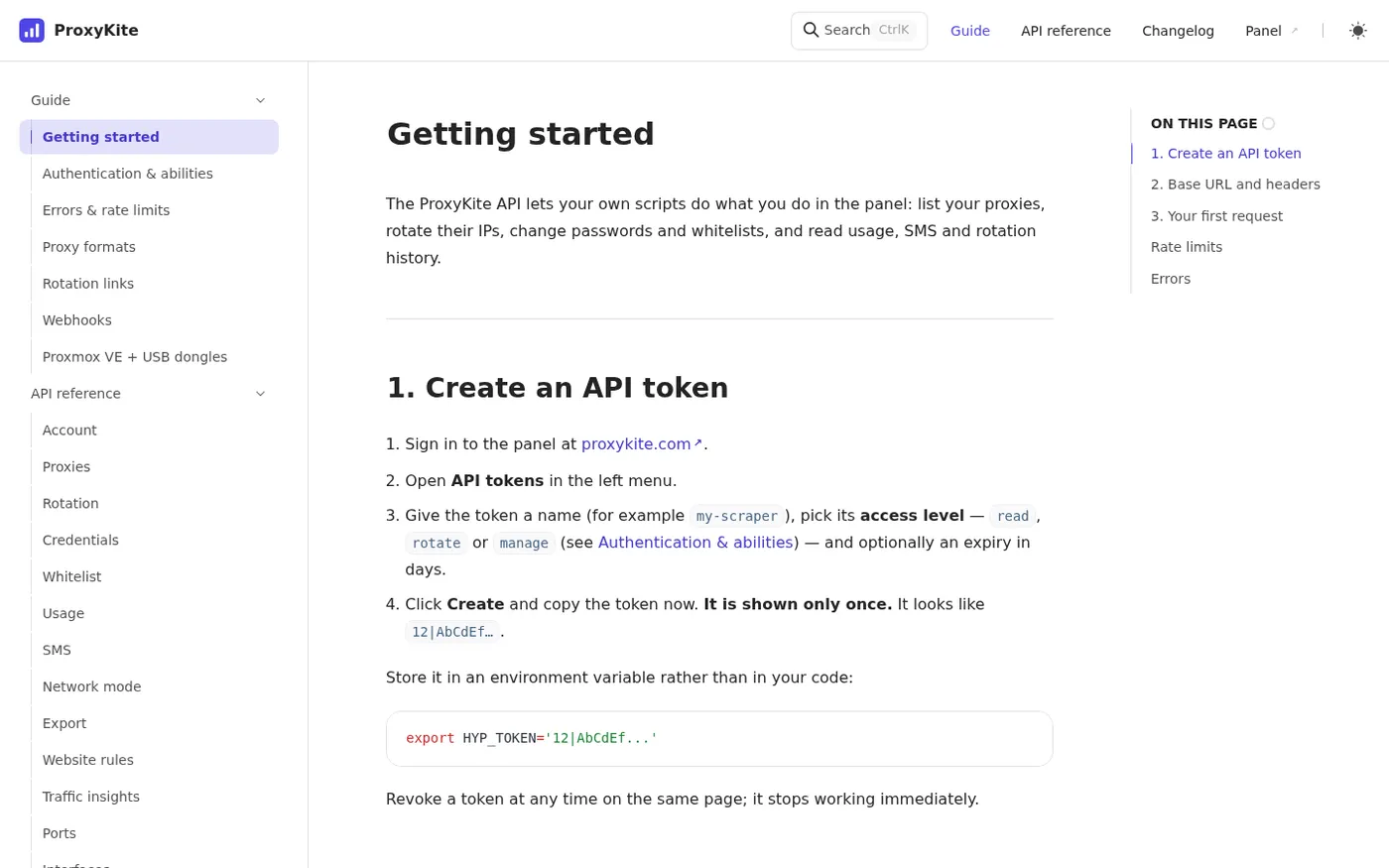
ProxyKite’s proxy format guide documents the HTTP, SOCKS5, host:port:user:pass, and user:pass@host:port formats. The getting-started guide is useful if you want to automate checks through the API.
Success looks like: authenticated HTTP and SOCKS5 requests complete, the returned IP is associated with the US mobile connection you tested, and the direct and proxied results are different where expected.
Step 5: Rotate and retest the connection
Why: Rotation should be tested as an operation, not assumed from the fact that the first IP works.
On the proxy page, use the rotation control or copy its secret rotation link. A rotation link can be called with a POST request:
curl -X POST 'https://proxykite.com/r/ROTATION_TOKEN'Treat the link like a password. Anyone who has it can request a rotation for that proxy. The rotation-link documentation explains the GET-only confirmation option, response fields, and rate limits.
Run the exit-IP test again after the rotation finishes. A new address may still geolocate to the same metro or carrier region. If your workflow needs a stable session, use the sticky option instead of rotating between every request. If it needs fresh addresses, set a sensible timer or rotate on demand and respect the rate limits of the destination site and the carrier plan.
Success looks like: the rotation request returns a successful response, the next proxied lookup is completed through the dongle, and your application can handle the transition without losing credentials or sending traffic before the connection is ready.
Verify a USA mobile proxy before production
Use this short acceptance checklist for each new US dongle:
- The SIM is active on a plan that permits the device and intended traffic.
- The exact dongle variant supports the chosen network’s relevant LTE bands.
- The dongle is physically installed at the US address you selected.
- The Linux box sees the HiLink interface and has outbound internet.
- The proxy accepts the authentication format your client will use.
- An HTTP request and a SOCKS5 request return the expected mobile exit IP.
- Rotation works once, and the application handles the result correctly.
- Data usage, quotas, and alerts are configured before customer traffic is enabled.
For signal troubleshooting, compare the modem’s signal readings at the planned installation point and see how to improve 4G dongle signal. For a multi-dongle build, the 4G proxy farm cost guide helps separate hardware, SIM, data, power, and software costs.
Troubleshooting
The dongle appears in USB but the proxy never registers. Check that it is a HiLink model, that the SIM is seated and active, and that ip -br link shows a USB network interface. Reconnect it directly instead of through a hub, then confirm the APN and data session in the dongle’s management page.
The SIM works in a phone but not in the dongle. Re-check the plan’s device category, activation status, APN, and hotspot rules. Ask the provider whether it requires an approved IMEI or a specific data-only plan. Do not try to disguise the device or bypass a carrier restriction.
The result is not geolocated to the city you expected. That can be a database issue or normal carrier routing. Confirm the physical deployment address, check the ASN and carrier, and test multiple geolocation databases. If the metro is a business requirement, deploy and test a dongle at that metro rather than relying on a cloud location.
The proxy works once and then fails. Check the SIM’s remaining data, the modem’s local data session, USB power, and the box’s outbound connection. A powered hub becomes important when several dongles share one host; see the powered USB hub guide.
Rotation does not produce a new address. Confirm that the dongle and plan support the requested rotation method, wait for the operation to finish, and check the rotation response. Do not call the link repeatedly: ProxyKite documents per-link and per-client rate limits, and the carrier may also control when a new address is assigned.
FAQ
What is a USA mobile proxy?
A USA mobile proxy routes requests through a cellular SIM and modem operating in the United States. The exit address comes from the mobile network, while the proxy endpoint can be reached through a cloud router.
Can I run a USA mobile proxy from outside the US?
You can administer the box remotely, but the dongle and active US SIM need to be in the US to create a US cellular exit. A remote server by itself does not create a mobile IP from another country.
Which SIM is best for a US 4G dongle?
There is no universal best SIM. Choose a data-only or hotspot-compatible plan whose device, bands, coverage, data allowance, and traffic rules fit the exact modem and address. Test one line before buying a batch.
What does ProxyKite provide for a US setup?
No. ProxyKite provides the software and cloud routing. You supply the Huawei E3372 or compatible hardware, US SIM, and mobile data plan; the licence is billed per active dongle rather than per gigabyte.
Do I need a static IP or port forwarding?
No. The Linux box makes an outbound connection to the cloud router, so a normal internet connection behind CGNAT can work. You still need to allow the box to reach the internet and keep the dongle powered.