
Screaming Frog proxy settings let you run an SEO crawl through a different internet connection, such as a mobile IP from your own 4G dongle. This is useful when an agency needs to inspect a client site from a mobile network, separate several audit machines, or reduce dependence on one office IP while staying within the site owner’s crawl rules.
When an SEO crawler needs a proxy
Most technical audits do not require a proxy. If your office connection is stable and the site accepts your crawl rate, direct crawling is simpler. A proxy becomes useful when the audit needs to represent a different network or when several legitimate crawlers share one public IP.
Common examples include:
- Checking how a site responds when requests come from a mobile network.
- Auditing client sites from an agency environment with many users or tools behind one IP.
- Separating crawl traffic from your normal office or home connection.
- Comparing responses from two networks during a performance or delivery investigation.
A mobile proxy changes the network path and source IP. It does not turn a crawl into an authorised one. Crawl only sites you own or have permission to audit, respect robots.txt and contract terms, and tell the site owner when you are running a larger crawl.
ProxyKite uses your own SIM, 4G/LTE dongle, and data plan. Its software exposes the dongle as HTTP and SOCKS5 proxy endpoints, with no static IP or inbound port forwarding required. The Raspberry Pi mobile proxy guide explains the hardware side; this guide focuses on the Screaming Frog desktop settings.
What you need before configuring Screaming Frog
Prepare these four things before opening the crawler:
- A working proxy host and port from your proxy dashboard.
- Either a username and password or the IP address allowed by your proxy’s access rules.
- A test URL that you are authorised to request.
- A crawl plan with a sensible request rate and URL limit.
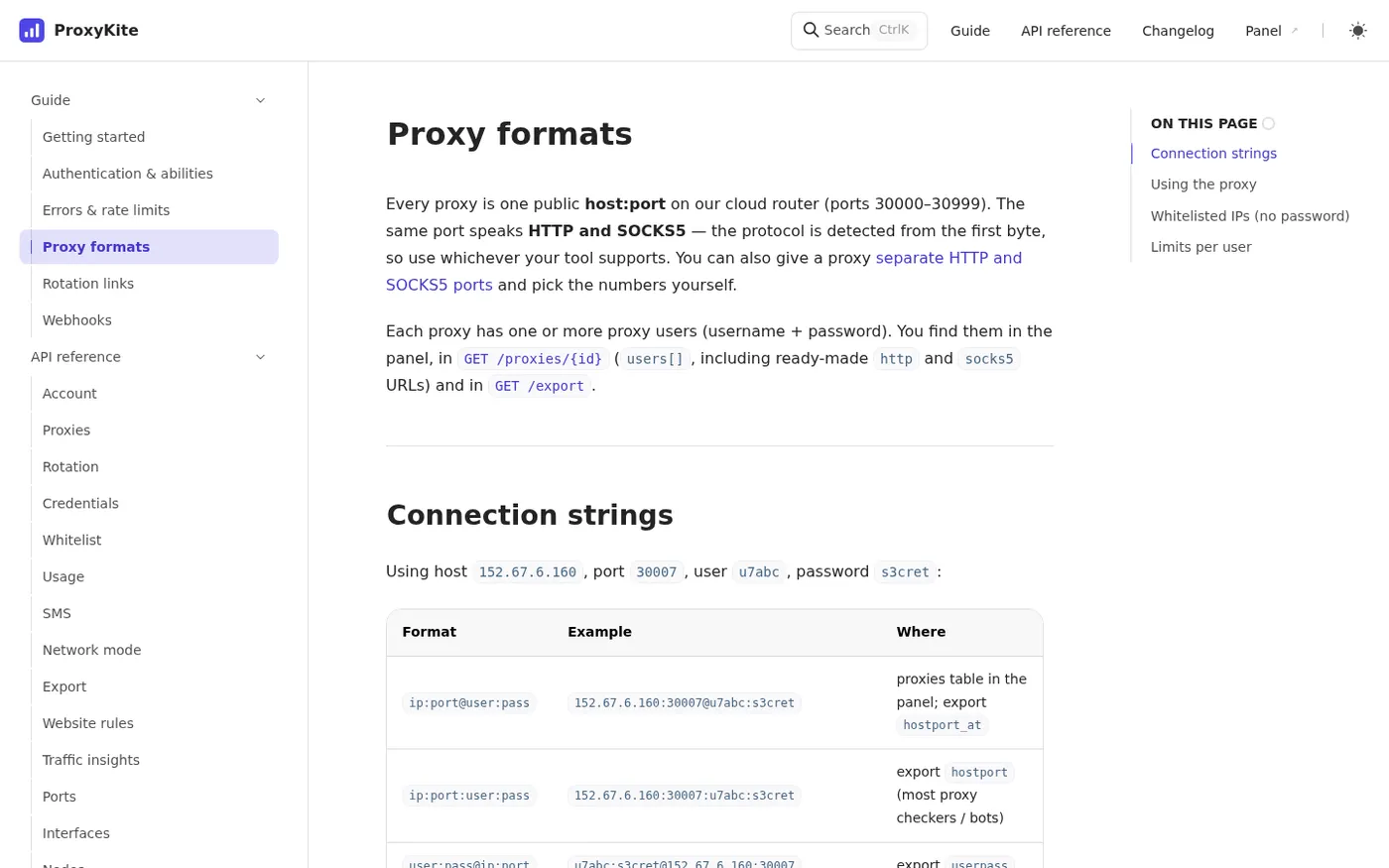
ProxyKite can export a proxy as host:port:user:pass, user:pass@host:port, or CSV. The proxy formats guide shows the exact output formats. Screaming Frog’s proxy dialog asks for the server address, port, and credentials, so enter those components in their separate fields rather than pasting an export string into one field.
Test the endpoint outside Screaming Frog first. This separates an unreachable proxy from a desktop configuration problem.
curl --proxy "http://HOST:PORT" \
  --proxy-user "USER:PASSWORD" \
  https://example.com/
Replace example.com with a site you are allowed to test. A normal HTML response, redirect, or expected access response shows that the request completed through the endpoint. A proxy authentication error means the credentials or authentication mode needs attention.
If you are testing a SOCKS5 endpoint with curl, use the SOCKS-aware scheme and enable remote DNS resolution:
curl --proxy "socks5h://HOST:PORT" \
  --proxy-user "USER:PASSWORD" \
  https://example.com/
Step 1: Open the proxy panel
Why: Screaming Frog keeps proxy configuration outside the main Spider configuration, so changing crawl speed alone will not route traffic through the proxy.
On Windows or Linux:
- Open Screaming Frog SEO Spider.
- Select
File > Settings > Proxy. - Tick
Use Proxy Server.
On macOS, select Screaming Frog SEO Spider > Settings > Proxy, then enable the proxy option. The official Screaming Frog configuration guide documents both menu paths.
The success check at this stage is simple: the proxy dialog is open and the proxy is enabled. Do not start a large crawl yet.
Step 2: Enter the server and authentication
Why: The proxy host, port, and authentication method must match the endpoint exactly; a valid host with the wrong port still produces a failed crawl.
Enter the values from your proxy export:
| Screaming Frog field | What to enter |
|---|---|
| Proxy server / address | The hostname or IP of the proxy router |
| Port | The proxy port, without a colon |
| Username | The proxy username, if using user-and-password authentication |
| Password | The matching password |
If your access rule uses an IP whitelist, leave the username and password fields as the interface requires and make sure the machine running Screaming Frog is on the allowed list. For username-and-password access, follow the ProxyKite authentication guide and copy the credentials exactly.
Screaming Frog documents one proxy server at a time. It also says that proxy exceptions are not available: either all HTTP/HTTPS traffic uses the configured proxy or none of it does. That matters for agencies using the same application for both client audits and internal URLs.
If the dialog has no protocol selector, start with the HTTP endpoint and enter only its host and port. Do not paste http://, socks5://, or a complete user:pass@host:port string into a field that expects a bare value. If your build explicitly offers a SOCKS5 option, use the matching SOCKS5 endpoint and test it with curl first.
Success looks like the host, port, and authentication fields match one tested endpoint, with no URL scheme or combined export string in the wrong field.
Step 3: Restart and run a controlled crawl
Why: The proxy setting is not ready for a full audit until the application has restarted and completed a small authorised test crawl.
- Save or confirm the proxy settings.
- Close and reopen Screaming Frog. The vendor notes that a restart is required for proxy changes to take effect.
- Enter one small, authorised URL.
- Start the crawl and watch the first few response codes.
- Stop the crawl if every request fails; do not increase the crawl size to troubleshoot a configuration error.
For a first test, use a site with a predictable homepage and inspect whether the start URL receives a response. A successful response confirms that the application can connect through the proxy. It does not prove that every destination, redirect, CDN, or login flow will behave the same way.
Step 4: Set a crawl rate that the site can handle
Why: A proxy changes the route, not the effect of your requests on the destination server.
Open the crawl speed controls and begin conservatively. Screaming Frog’s documented default is five threads, and its guide recommends using the maximum URLs per second control when you need to reduce request rate. For a new client site, start at one URL per second or lower if the owner has requested a limit, then adjust only after checking response times.
Use a crawl plan such as this:
| Audit situation | Starting approach |
|---|---|
| Small site or first test | One URL, then a small sample of pages |
| Normal technical audit | A low request rate agreed with the webmaster |
| Slow or rate-limited site | Reduce URLs per second and increase the response timeout only when slow responses are expected |
| Several network views | One proxy at a time, with a saved crawl name for each route |
Do not rotate the IP for every request just to make a crawl look different. For an SEO audit, a stable session is usually easier to interpret. Use rotation when the test specifically asks how delivery changes between mobile connections, and record the time and endpoint for each sample. ProxyKite supports on-demand, rotation-link, and timer-based rotation; the rotation links guide explains the controls.
Success looks like a crawl rate agreed with the site owner, a small initial error rate, and response times that remain stable as you increase the URL sample.
The 4G proxy farm setup guide covers power and USB-hub planning when you need several independent mobile routes. Screaming Frog itself still uses one configured proxy at a time, so multiple routes require separate runs or separate crawl machines.
HTTP vs SOCKS5 and authentication
HTTP and SOCKS5 are proxy protocols, not different kinds of SEO audits. Both can carry a request to a destination, but the application must support the protocol you select.
Use an HTTP endpoint when the Screaming Frog proxy dialog accepts a server address, port, and credentials but does not expose a protocol choice. Use a SOCKS5 endpoint only when the installed build clearly supports it, or place a protocol-compatible local adapter in front of the endpoint. Never assume that changing http:// to socks5:// in a text field changes how the application connects.
Authentication usually fails for one of three reasons:
- The username or password was copied with an extra space.
- The proxy expects IP whitelisting but the crawler’s current public IP is not allowed.
- A password contains URL-reserved characters and was copied into a URL instead of the separate password field.
Keep credentials out of screenshots, shared crawl files, shell history, and client reports. If you use a command-line test, clear or protect the terminal history after testing.
Test the mobile version from a mobile IP
A mobile IP is useful when the audit question is about network context, not as a substitute for a mobile device. A crawl through a mobile proxy can help compare server responses, geo-dependent delivery, access rules, or content that is selected by network characteristics.
It does not emulate a phone browser. For a genuine mobile rendering check, also configure a mobile user agent and, when relevant, JavaScript rendering and viewport settings in Screaming Frog. Treat the results as separate dimensions:
| Question | Setting to vary |
|---|---|
| Does the server respond differently from a mobile network? | Proxy endpoint |
| Does the site serve a mobile layout? | User agent, rendering, and viewport |
| Does a location-specific page load? | Proxy geography and request headers |
| Does the page work for a real logged-in user? | Approved authentication flow and cookies |
Run the same URL set through the office route and the mobile route where comparison matters. Record the crawl name, user agent, proxy route, time, status code, and final URL. This prevents you from treating a cache, redirect, or temporary response as a proxy finding.
Verify the crawl path
Why: A crawl that completes is not enough; you need to confirm that the requests used the intended route and that the site returned usable responses.
Use this verification sequence:
- Check the proxy endpoint with curl and note the observed public IP if your test service exposes it.
- Run a one-URL crawl in Screaming Frog.
- Check the response code and final URL.
- Compare the result with a direct-browser request from the same machine.
- Review response times and error patterns before increasing the URL count.
If the destination is yours, check server or CDN logs for the proxy IP and the Screaming Frog user agent. The crawler is robots.txt compliant by default, so a proxy does not remove the need to review crawl directives. If the site uses a CDN allowlist, ask its owner to allow the approved audit route and user agent rather than trying to work around the control.
Troubleshooting 407, timeouts, and blocked crawls
407 Proxy Authentication Required
The proxy received the request but rejected authentication. Re-enter the username and password in their separate fields, confirm that the endpoint uses the same authentication mode, and repeat the curl test. If the proxy uses an IP whitelist, add the crawler machine’s current public IP in the proxy dashboard instead of entering random credentials.
Connection timeout or no response
First disable the proxy and test the same URL directly. Then test the proxy endpoint with curl. If the direct request works but the proxy request does not, check the host, port, dongle connection, and SIM data service. If the proxy request works but the crawl times out, reduce crawl speed and consider a longer response timeout for a genuinely slow destination.
The crawl returns 403 or 406
A destination or its CDN may be refusing the crawler, user agent, request rate, or source IP. Confirm that you have permission to crawl the site, lower the request rate, and ask the site owner to allowlist the approved audit traffic. Screaming Frog’s HTTP status code guidance also recommends checking proxy configuration and site-side access controls.
Some requests work and others fail
Check whether failures cluster around one host, redirect target, asset type, or response code. Remember that Screaming Frog applies the configured proxy to all HTTP/HTTPS traffic; you cannot add an exception for just one domain. Test the final redirect URL directly through the proxy and compare it with the original URL.
The IP did not change
Confirm that the proxy is enabled, restart Screaming Frog, and verify the public IP with a separate authorised test. If you expected a new IP after a rotation request, wait for the endpoint to report the change before starting the comparison crawl. A rotation event changes the route; it does not change the user agent, cookies, DNS records, or browser rendering mode.
FAQ
Where are the Screaming Frog proxy settings?
On Windows and Linux, open File > Settings > Proxy. On macOS, open Screaming Frog SEO Spider > Settings > Proxy. Enable the proxy, enter the server and port, add credentials if required, and restart the application.
Can I use a mobile proxy with Screaming Frog?
Yes, if the endpoint and protocol are supported by your installed Screaming Frog build. For a ProxyKite route, test the HTTP endpoint first, enter its host, port, username, and password separately, then run a small authorised crawl before scaling it up.
Does Screaming Frog support more than one proxy at once?
The official configuration guide documents one proxy server at a time and no proxy exceptions. To compare several mobile routes, run separate crawls or use separate machines and label each crawl with its route.
Should I use HTTP or SOCKS5 for an SEO crawler?
Use the protocol that the application actually supports. If the Screaming Frog dialog has no protocol selector, use an HTTP-compatible endpoint; test a SOCKS5 endpoint with a SOCKS-aware client rather than pasting its scheme into an address field that expects only a host and port.
Can a proxy bypass a site’s crawl rules?
No. A proxy changes the network route, not the site’s permission rules. Crawl only authorised sites, follow robots.txt and contract terms, keep the rate reasonable, and coordinate with the webmaster when an audit needs allowlisting.