
A UK mobile proxy is not created by selecting “UK” in a dashboard: the 4G/LTE dongle and its SIM must be physically connected to a UK mobile network. This guide shows how to place one box in the UK, choose a plan without relying on carrier promises, install ProxyKite on a Raspberry Pi or Linux host, and verify the public exit before you use it.
What makes a mobile IP UK
The part that determines the mobile exit is the cellular connection. A UK SIM connected to a dongle that is physically in the UK receives service from a UK mobile network; the public address seen by a destination is then allocated somewhere in that carrier’s mobile network.
The cloud router makes the proxy reachable from the internet. It does not turn a non-UK SIM into a UK mobile connection. A UK cloud server with an overseas dongle has a UK server address, not a UK mobile exit.
| Part of the path | What it controls |
|---|---|
| UK SIM and mobile network | The cellular session and the mobile network’s public egress |
| Dongle location | Where the radio connection is established; keep it in the UK for a UK exit |
| Raspberry Pi or Linux box | The local connector and device management |
| ProxyKite cloud router | The public host and port that clients connect to |
| GeoIP database | How a website labels the public IP; results can be broad or inconsistent |
Mobile networks commonly use dynamic addressing and NAT. UK government communications-data guidance notes that a mobile IP can be shared by customers and that mobile IP location is probabilistic, so treat a country-level result as the main check rather than expecting a precise street or city. MaxMind’s geolocation guidance also warns that cellular IPs may resolve to a broad region.
Where the box must sit
For a genuine UK mobile exit, keep the working unit in the UK: the dongle, the inserted SIM, and the Linux box managing the dongle. The client using the proxy can be anywhere. Their location does not replace the mobile connection’s exit.
The box needs a normal outbound internet path so its agent can connect to the cloud router. It does not need a static public IP or an inbound firewall rule. That is useful when the box’s broadband connection, or the mobile connection itself, is behind CGNAT. See the guide to why CGNAT proxy port forwarding fails if you are planning around an inbound port.
For one dongle, a Raspberry Pi with a direct USB connection is a sensible starting point. For several dongles, use a powered USB hub, leave airflow around the hardware, and record which physical hub port belongs to each SIM. The Raspberry Pi mobile proxy guide covers the reference layout in more detail.
Choosing a UK SIM plan: what to check
Do not choose a SIM from a list of “best UK proxy carriers”. Plans and terms change, and signal at the exact installation address matters more than a national headline. Choose a plan you are allowed to use in a modem or other data device, then verify it with one dongle before you build a fleet.
Check these points:
- Device use. Read the current plan terms for modem, router, tethering, commercial use, and automated traffic. Use the SIM only in ways the provider permits.
- Data allowance. Proxy traffic uses the SIM’s data plan. Check the allowance, renewal date, fair-use wording, speed policy, and what happens when the allowance is exhausted. ProxyKite does not sell bandwidth or add a per-GB charge; the carrier plan remains your cost and responsibility.
- Coverage at the box. Enter the installation postcode in Ofcom’s mobile coverage checker. Treat the map as a planning signal, then test the actual room, antenna position, and dongle.
- APN requirements. Some plans need a particular APN or username and password. Keep the provider’s current settings with the SIM inventory rather than copying settings from a different carrier.
- SMS needs. If you need the dongle’s SMS inbox for carrier notices and operations, confirm that the plan and device support SMS. Do not use a SIM or proxy for bulk unsolicited messaging.
- Account and local rules. Register and administer the SIM lawfully, follow the provider’s terms, and keep a record of who controls each number. Do not use someone else’s identity or a plan that forbids the intended device.
The SIM data-plan checklist is useful when comparing allowance, device compatibility, coverage, and account controls. A plan that looks cheap but cannot legally or practically serve a modem is not a useful proxy input.
What you need
Start with one complete UK unit. Scaling before this path works makes it harder to tell whether a problem is the SIM, the USB connection, the local uplink, or the proxy configuration.
| Item | Starting choice | What to confirm |
|---|---|---|
| 4G/LTE dongle | Huawei E3372 HiLink or a similar compatible HiLink model | The box can see the USB device and open the HiLink page |
| SIM | Activated UK SIM with a permitted data plan | Data works in the intended modem and the plan terms fit |
| Linux host | Raspberry Pi or another supported Linux box | Stable power, storage, and outbound internet |
| USB power | Direct USB for one stick; powered hub for more | The hub has its own suitable power supply |
| ProxyKite access | Account and licence key from the panel | The key is kept private and assigned to the right box |
| Test client | A separate laptop, server, or script | It can send HTTP and SOCKS5 requests with credentials |
ProxyKite provides software and cloud routing only. You provide the dongle, SIM, mobile data plan, hardware, and bandwidth. The per-dongle licence is $9 per dongle per month, with traffic billed by your own SIM plan rather than by ProxyKite.
Step 1: Prepare the UK box and dongle
Why: Prove that the physical UK SIM path works before you add proxy software or a second dongle.
- Put the activated UK SIM into the Huawei E3372 HiLink dongle and connect it directly to the Linux box. Keep a multi-dongle hub out of the first test.
- Confirm that Linux sees the USB device and has its ordinary internet connection:
   lsusb
   ip addr
   ip route
curl -sS https://api.ipify.org && printf '\n'- Open the HiLink management page from the box or a machine on the same local network:
   ping -c 3 192.168.8.1
curl -fsS http://192.168.8.1/ | head- In the HiLink page, confirm that the SIM is registered and mobile data is connected. If the page loads but data does not, check the SIM, APN, allowance, and modem-use terms before changing routes.
Success looks like a Huawei device in lsusb, a reachable HiLink page, a usable local route, and an outbound response from the box. The IP returned at this stage is only the box’s current direct path; it is not yet the proxy endpoint.
Step 2: Install ProxyKite and bring the node online
Why: The agent connects outbound from the UK box and lets the cloud router publish each dongle as an authenticated proxy without port forwarding.
- In the ProxyKite panel, create or copy the licence key for the node. Keep it out of shell history shared with other operators and out of public tickets.
- From an SSH session on the Linux box, run the current installer command from the ProxyKite USB-dongle guide:
curl -fsSL https://proxykite.com/install.sh | sudo bash -s -- --key YOUR-LICENCE-KEYReplace YOUR-LICENCE-KEY with the key from your panel. Do not invent a key or reuse one assigned to another box.
- Return to the panel and wait for the node and its dongle to appear. Open the proxy entry and copy the generated host, port, and credentials. Use the proxy formats guide if your client expects a different connection-string format.
- If you plan to automate rotations or checks, create a narrowly scoped API token and store it in an environment variable. The supplied screenshot shows the current token page and the access levels available after the node is set up.
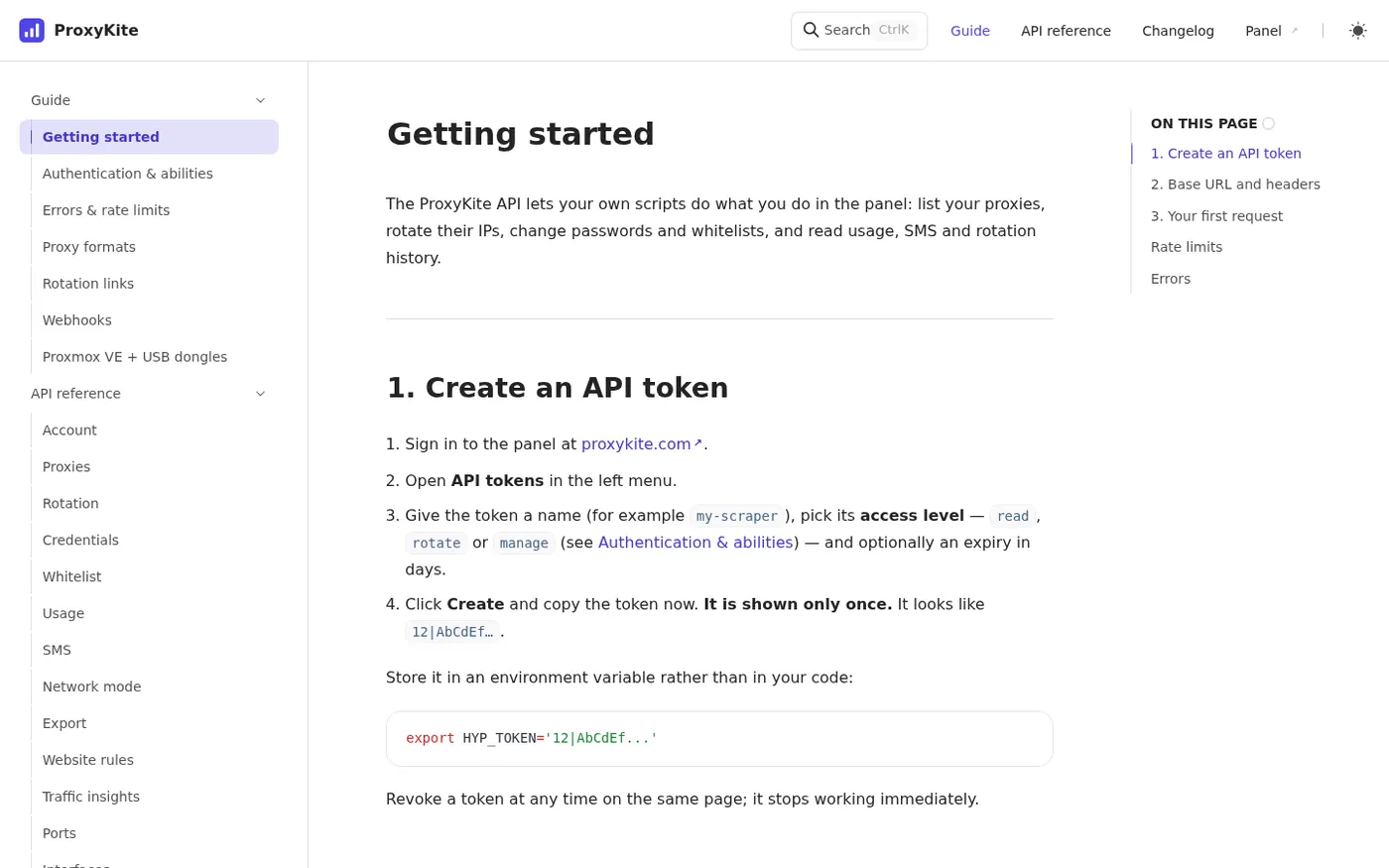
Success looks like the intended UK dongle is online in the panel and has an endpoint that accepts authenticated HTTP and SOCKS5 traffic. The endpoint’s cloud hostname does not need to look geographically British; the mobile exit is decided by the SIM path.
Step 3: Test the proxy from a separate client
Why: A direct test from the Pi can hide authentication, routing, or client-side proxy errors. A second machine proves the public path that a real user or application will use.
- Export the endpoint from the panel without saving credentials in a public script:
   export HTTP_PROXY_URL='http://USER:PASSWORD@HOST:PORT'
export SOCKS_PROXY_URL='socks5h://USER:PASSWORD@HOST:PORT'- Test HTTP through the endpoint:
   curl --fail --silent --show-error --proxy "$HTTP_PROXY_URL" \
https://api.ipify.org && printf '\n'- Test SOCKS5 and let the proxy resolve the destination hostname:
   curl --fail --silent --show-error --proxy "$SOCKS_PROXY_URL" \
https://api.ipify.org && printf '\n'- Run the same request once without a proxy and record both results. Do not treat the client’s direct address as the expected UK address; it is only a comparison point.
Success means both protocols return an address, authentication succeeds, and the proxied result is the public address of the mobile session rather than the client’s normal egress. If a password contains URL-reserved characters, use the exported connection string from the panel or encode the credentials correctly.
Confirm the exit location
The first check should be country and network, not city. Send a request through the proxy to a GeoIP service, then compare the result with a second independent lookup. Record the IP, country, network or ASN, lookup time, and the proxy ID in your test notes.
| Result | Interpretation |
|---|---|
| Country is United Kingdom and the network is cellular | The result is consistent with a UK mobile exit |
| Country is United Kingdom but city is unexpected | Often a GeoIP database choice or broad mobile-region mapping; compare another provider |
| Country is not United Kingdom | Check the SIM’s physical location, roaming state, APN, dongle session, and that the test really used the proxy |
| The result is the client’s normal IP | The application bypassed the proxy or the proxy URL was malformed |
| HTTP works but SOCKS5 fails | Check the scheme, credentials, port, and whether the client supports socks5h |
Do not promise a specific London, Manchester, or postcode result to a customer unless the destination’s own rules and your repeated tests support that claim. Mobile IP geolocation can lag behind a network change and can place a shared address at a broader regional point. A country-level UK result plus a matching mobile network is the honest acceptance test.
For a later rotation test, use the panel or a private rotation link. ProxyKite returns the old and new IP when a rotation completes, but the carrier still controls the allocation and the old address can return. The rotation-link guide explains the safe POST workflow and why the link must be treated like a secret.
Troubleshooting a UK mobile proxy
The node is not online. First run lsusb, ip route, and a direct curl from the box. If the USB device is missing, reconnect the dongle directly; if it is present but the HiLink page has no data, check the SIM, APN, allowance, and plan terms.
The proxy returns an authentication error. Copy the host, port, username, and password again from the panel. Test with HTTP first, then test SOCKS5 with the correct socks5h:// scheme. Keep credentials out of shell transcripts and application logs.
The GeoIP result is outside the UK. Verify that the dongle and SIM are physically in the UK, that the request used the proxy, and that the SIM is not roaming onto another country’s network. Check a second GeoIP source before changing hardware; a single database can be stale.
The result says London but the hardware is elsewhere. That is not automatically a routing failure. Mobile networks can share public addresses across a broad area, while GeoIP providers choose their own reference point. Validate the country and mobile network, not a precise city label.
A second dongle changes the first result. Return to the one-dongle layout, then add devices one at a time through a powered hub. Label each SIM, dongle, and hub port, and confirm the panel mapping before adding the next device.
FAQ
Can a UK cloud server create a UK mobile proxy?
No. A UK cloud server can provide a UK datacenter exit, but it does not provide a UK mobile-network IP. For a UK mobile proxy, keep the SIM and dongle connected to the UK mobile network and use cloud routing only to make that connection reachable.
Do I need a static IP or an open port in the UK?
No. The box makes an outbound connection to ProxyKite’s cloud router, which publishes the proxy endpoint. This avoids relying on inbound port forwarding and works when the local connection is behind CGNAT.
Can I guarantee a London IP from a UK SIM?
No. The carrier assigns the public address, and GeoIP providers may map a mobile address to a broad region or a different city. Promise only what you have repeatedly verified at country and network level.
What should I look for in a UK SIM plan?
Choose a plan whose current terms permit the modem or tethering use you need, with enough data for the workload and coverage at the box. Check the APN, renewal and fair-use rules, and SMS support if you need the dongle’s inbox.
Does ProxyKite provide the UK SIM or dongle?
No. You supply the Huawei E3372 or compatible HiLink dongle, SIM, data plan, and hardware. ProxyKite supplies the software and cloud routing; its licence is $9 per dongle per month and has no per-GB charge.