
Forward SMS to Telegram from a 4G dongle when the SIM stays in a Huawei E3372 and you need its messages without unplugging the stick. This guide covers a receiving-only DIY bridge for your own SIM, then the simpler ProxyKite SMS inbox and Telegram alert workflow for a Raspberry Pi or Linux box.
What you need
Prepare the hardware and access before writing a forwarder:
| Item | What to check |
|---|---|
| Huawei E3372 HiLink dongle | The SIM is inserted, the modem is online, and the HiLink management page opens from the Linux box. Similar HiLink models may work, but their API paths can differ. |
| SIM and mobile plan | Use a SIM you own or are authorised to administer. It must be able to receive SMS, such as carrier balance and data-pack notices. |
| Raspberry Pi or Linux box | It needs outbound HTTPS access. A powered USB hub is the safer choice when you run several dongles. |
| Telegram bot | Create it with BotFather and keep its token private. Use a private chat or a restricted operations group. |
| Test message | Send a harmless test SMS from your own phone first. |
The dongle receives the SMS on the SIM. Telegram is only the notification destination. The two systems are connected by software running on your box; the modem does not need to be pulled out and moved to a phone.
If you are still building the Pi and modem side, start with this mobile proxy build guide. It explains the HiLink connection, USB power, and the outbound-only routing model.
Step 1: Confirm the dongle and SIM can receive SMS
Why: a Telegram script cannot repair a modem that is not registered or a SIM that cannot receive messages.
Connect one dongle directly to the Pi before adding a hub or a second device. Find its network interface and gateway:
lsusb
ip -br link
ip route
Open the gateway shown by ip route in a browser. Many Huawei HiLink units use 192.168.8.1, but use the address reported by your box instead of assuming it. Confirm that the modem is registered and has a mobile data session.
Send a test SMS to the SIM from a number you control. Check the HiLink web interface for the message. If it appears there, the SIM, radio connection, and modem inbox are working.
Success looks like this:
- The Linux box can reach the HiLink gateway.
- The modem reports a registered mobile connection.
- A test SMS appears in the modem inbox.
Do not expose the HiLink management address to the public internet. The modem interface is a local control surface, not an internet-facing webhook endpoint.
Step 2: Read SMS from a HiLink dongle
Why: the forwarder needs a repeatable way to fetch unread or recent messages before it can call Telegram.
HiLink firmware exposes a local XML web API on many Huawei devices. The exact endpoints and authentication headers vary by firmware, so identify the gateway first and test the session-token endpoint:
MODEM_URL=http://192.168.8.1
curl -sS "$MODEM_URL/api/webserver/SesTokInfo"
If your firmware supports that path, it returns XML containing a session token. A common inbox request is POST /api/sms/sms-list with an XML body selecting the SMS inbox. A typical request shape is:
TOKEN="paste-the-token-from-your-response"
curl -sS "$MODEM_URL/api/sms/sms-list" \
  -H "__RequestVerificationToken: $TOKEN" \
  -H "Content-Type: application/xml" \
  --data '<?xml version="1.0" encoding="UTF-8"?>
<request>
  <PageIndex>1</PageIndex>
  <ReadCount>20</ReadCount>
  <BoxType>1</BoxType>
  <SortType>0</SortType>
  <Ascending>0</Ascending>
  <UnreadPreferred>0</UnreadPreferred>
</request>'
The response should contain message records such as an index, sender, content, and date. Treat this as a firmware-dependent check, not a promise that every E3372 variant uses the same XML. If the response is an error or empty when the web interface shows a message, compare the exact model suffix and firmware before changing the script.
Keep the local modem request separate from the Telegram request. First prove that your script can fetch one message and identify it. Only then add forwarding and deletion logic. For this article’s use case, do not delete the modem copy automatically: keeping the source message gives you a recovery path if Telegram or the box is temporarily unavailable.
Step 3: Create and test the Telegram destination
Why: testing the bot separately prevents a valid modem message from being mistaken for a Telegram configuration failure.
- Open Telegram and message
@BotFather. - Use
/newbotand copy the token it returns. Store it as a secret, not in a Git repository or a screenshot. - Open a private chat with the new bot and send
/start. - Ask Telegram for the bot’s recent updates:
export TELEGRAM_BOT_TOKEN='paste-your-token-here'
curl -sS "https://api.telegram.org/bot${TELEGRAM_BOT_TOKEN}/getUpdates"
Find result[].message.chat.id in the JSON and store that value as your destination. If result is empty, send another message to the bot and repeat the request. The official Telegram Bot API documents the HTTPS request format, getUpdates, and sendMessage; the bot token should be treated like a password.
Send a test message using sendMessage:
export TELEGRAM_CHAT_ID='paste-your-chat-id-here'
curl -sS -X POST "https://api.telegram.org/bot${TELEGRAM_BOT_TOKEN}/sendMessage" \
  -d "chat_id=${TELEGRAM_CHAT_ID}" \
  --data-urlencode "text=SMS bridge test from the dongle box"
Success is a JSON response with "ok":true and the message visible in your private chat. Telegram supports both polling and webhooks for receiving bot updates, but this forwarder only sends notifications, so it does not need a Telegram webhook.
Step 4: Build a receiving-only DIY forwarder
Why: a small bridge is enough for one dongle, provided it remembers which SMS records it has already sent.
Install the Python HTTP client on the Linux box:
python3 -m venv .venv
. .venv/bin/activate
pip install requests
Use environment variables for the modem URL, Telegram credentials, and a local state file. The example below shows the important control flow. The read_hilink_sms function is deliberately the adapter point because Huawei firmware variants do not all return identical XML:
import json
import os
import time
import xml.etree.ElementTree as ET
import requests

MODEM_URL = os.environ.get("MODEM_URL", "http://192.168.8.1")
BOT_TOKEN = os.environ["TELEGRAM_BOT_TOKEN"]
CHAT_ID = os.environ["TELEGRAM_CHAT_ID"]
STATE_FILE = os.environ.get("SMS_STATE_FILE", "sms-state.json")
modem = requests.Session()

def read_state():
    try:
        with open(STATE_FILE, "r", encoding="utf-8") as f:
            return set(json.load(f))
    except FileNotFoundError:
        return set()

def write_state(seen):
    with open(STATE_FILE, "w", encoding="utf-8") as f:
        json.dump(sorted(seen), f)

def send_to_telegram(text):
    url = f"https://api.telegram.org/bot{BOT_TOKEN}/sendMessage"
    response = requests.post(url, data={"chat_id": CHAT_ID, "text": text}, timeout=20)
    response.raise_for_status()
    if not response.json().get("ok"):
        raise RuntimeError(response.text)

def read_hilink_sms():
    token_xml = modem.get(f"{MODEM_URL}/api/webserver/SesTokInfo", timeout=10).text
    token = ET.fromstring(token_xml).findtext(".//TokInfo")
    if not token:
        raise RuntimeError("HiLink token was not returned")
    body = """<?xml version="1.0" encoding="UTF-8"?>
<request><PageIndex>1</PageIndex><ReadCount>20</ReadCount>
<BoxType>1</BoxType><SortType>0</SortType><Ascending>0</Ascending>
<UnreadPreferred>0</UnreadPreferred></request>"""
    response = modem.post(
        f"{MODEM_URL}/api/sms/sms-list",
        headers={"__RequestVerificationToken": token, "Content-Type": "application/xml"},
        data=body,
        timeout=10,
    )
    response.raise_for_status()
    root = ET.fromstring(response.text)
    messages = []
    for node in root.findall(".//Message"):
        messages.append({
            "id": node.findtext("Index") or node.findtext("Id"),
            "sender": node.findtext("Phone") or "unknown sender",
            "text": node.findtext("Content") or "",
            "date": node.findtext("Date") or "unknown date",
        })
    return [message for message in messages if message["id"]]

seen = read_state()
while True:
    for message in read_hilink_sms():
        message_id = str(message["id"])
        if message_id in seen:
            continue
        text = f"SMS from {message['sender']} ({message['date']}):\n{message['text']}"
        send_to_telegram(text)
        seen.add(message_id)
        write_state(seen)
    time.sleep(15)
The order matters: fetch, send, then mark the record as seen. If Telegram fails, the message remains eligible for a later attempt. If you mark it before sending, a short network failure can lose the notification. Keep the modem’s original inbox copy until you have tested the bridge and decided how long to retain messages.
Success means a new test SMS produces one Telegram message, restarting the Python process does not resend the same record, and a failed Telegram request does not advance the state file.
Step 5: Handle polling, storage, and several dongles
Why: most SMS bridge problems appear after the first successful message, when the inbox fills or multiple devices share one process.
Use these operating rules:
- Poll at a modest interval such as 15–30 seconds. SMS does not require a tight loop.
- Store a stable modem message index plus the dongle identity. The same index on a second dongle is a different message.
- Keep the state file on persistent storage and back it up with the rest of your configuration.
- Set a retention routine for old SMS in accordance with your privacy policy. Do not log message bodies by default.
- Run one worker per modem or give every worker its own gateway, state file, and label.
- Use a powered hub and label each USB port when you add dongles.
If the modem inbox reaches its capacity, new messages may not arrive as expected. Review and archive messages through the HiLink interface or your management layer after you have verified delivery. Do not auto-delete on receipt until you have a tested retry policy.
Step 6: Use ProxyKite’s SMS inbox and Telegram alerts
Why: a farm needs per-dongle identity, permissions, and alert routing in addition to a polling script.
With ProxyKite, the dongle remains yours, while the software and cloud routing manage the operational layer. Create an API token with the SMS read ability, note the proxy ID associated with the dongle, and request the newest messages:
export PROXY_ID='your-proxy-id'
export PROXYKITE_TOKEN='your-api-token'

curl "https://proxykite.com/api/v1/proxies/${PROXY_ID}/sms?limit=10" \
  -H "Authorization: Bearer ${PROXYKITE_TOKEN}" \
  -H "Accept: application/json"
The endpoint returns recent messages newest first. The limit value can be from 1 to 200; use a small value for a poller and persist the message IDs it has already delivered. The ProxyKite SMS API reference shows the request in curl, Python, Node.js, and PHP.
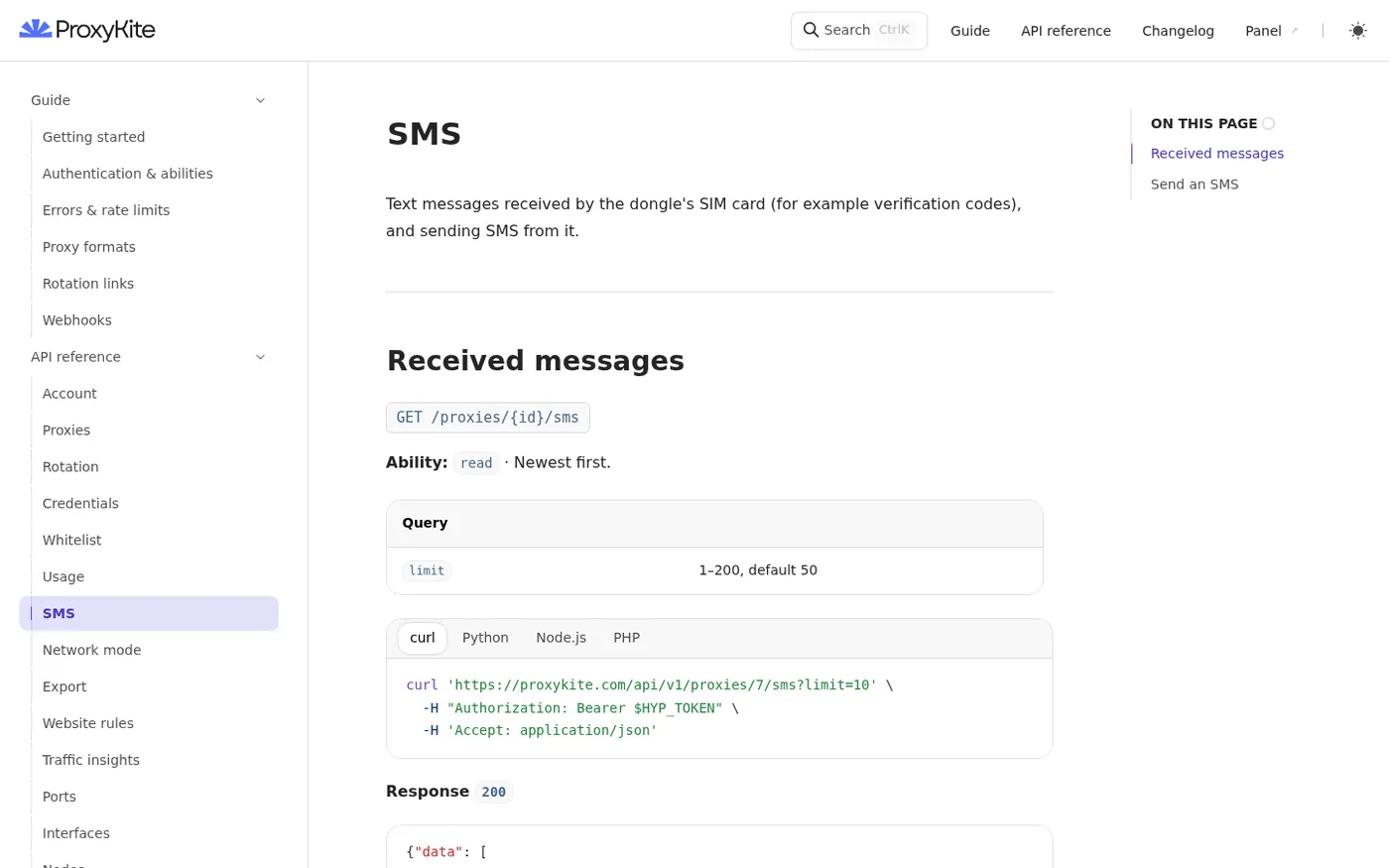
For a simple operation, use the panel’s Telegram alert capability for SMS events instead of maintaining a custom modem parser. For a more controlled workflow, read the API, filter by the dongle or message type you own, and send only the permitted notification to your private Telegram chat. Keep tokens and full message exports out of shared channels.
The per-dongle licence is $9 per dongle per month, billed monthly by Paddle with taxes added at checkout. Only active dongles are billed. There is no per-GB ProxyKite charge; traffic uses your own SIM data plan. The licence also includes SIM inbox for carrier messages, bandwidth limits, live traffic insights, webhooks, Telegram alerts, exports, sub-users, white-label tools, and the REST API. Review the feature overview or contact ProxyKite if you operate 50 or more dongles and want volume pricing.
Verify the finished bridge
Run this checklist with a harmless test message:
- The dongle is online and the SIM receives SMS.
- The local HiLink or ProxyKite API returns the new message.
- The bridge sends one Telegram message to the intended private chat.
- The state file records the message only after Telegram confirms success.
- A second poll does not duplicate the message.
- A stopped network path causes a retry rather than silent deletion.
- The bot token, API token, message body, and chat ID are not printed in routine logs.
After that, test a modem restart and a process restart separately. Then add one more dongle and confirm that its label and state are isolated from the first device.
Troubleshooting
The HiLink page opens, but the SMS API returns an error
Check the exact model suffix and firmware. Re-read the session token immediately before the SMS request, preserve cookies if the firmware requires them, and compare the XML request shape with the modem’s own web interface. Do not expose the management endpoint to the internet while debugging.
getUpdates returns no chat ID
Open the bot chat and send /start or another message, then call getUpdates again. If another application is already using a webhook, remove that webhook or use the existing delivery path; Telegram does not deliver the same bot updates through long polling and a webhook at the same time.
Telegram says the chat was not found
Check the token, make sure you opened the bot chat, and use the numeric message.chat.id from the update response. For a group, add the bot to that group and use the group chat ID only after checking its permissions.
Every poll forwards the same SMS
Persist a stable message ID after a successful sendMessage response. Do not use the message text alone as the key, because two legitimate messages can have identical content.
A message is missing after a network interruption
Keep the source SMS in the modem inbox and mark it as seen only after Telegram confirms success. For a larger fleet, prefer the ProxyKite API’s per-proxy message history and a durable state store over a temporary process variable.
Rules for SMS forwarding
Use this workflow only for SIMs, accounts, and Telegram destinations you own or are authorised to administer. Forwarding a message does not change the rules that apply to it; it is still your responsibility to follow your carrier’s terms and local requirements.
Do not turn the forwarder into a bulk-SMS sender, handle messages meant for other people, or post message contents in a public group. ProxyKite’s terms apply to the proxy and SMS workflow. Reading what your own SIM receives, such as carrier balance and data-pack notices, is an operations task; anything beyond that is outside this guide.
FAQ
Can a Huawei E3372 receive SMS while it is being used as a proxy?
Yes, a HiLink dongle can keep its SIM connected for mobile data and expose received messages through its management interface. Exact SMS API paths depend on the firmware, so verify the inbox from the local HiLink page first.
Can I forward SMS to Telegram without a Raspberry Pi?
Yes. Any Linux box that can reach the modem and make outbound HTTPS requests can run the bridge. A Raspberry Pi is a practical reference host for one or several USB dongles, especially with a powered hub.
Do I need a public IP or port forwarding for this setup?
No for the ProxyKite route. The box makes an outbound connection, so the mobile connection can sit behind CGNAT and the local HiLink interface can remain private.
Is ProxyKite required to forward SMS to Telegram?
No. The DIY HiLink approach can read the local inbox and call Telegram directly. ProxyKite is useful when you want a per-dongle SMS API, permissions, history, Telegram alerts, and the rest of the proxy-farm controls in one place.
Can I use this for bulk SMS?
No. Keep it to messages received by SIMs you own or administer. Do not use a dongle for spam or unsolicited messages.