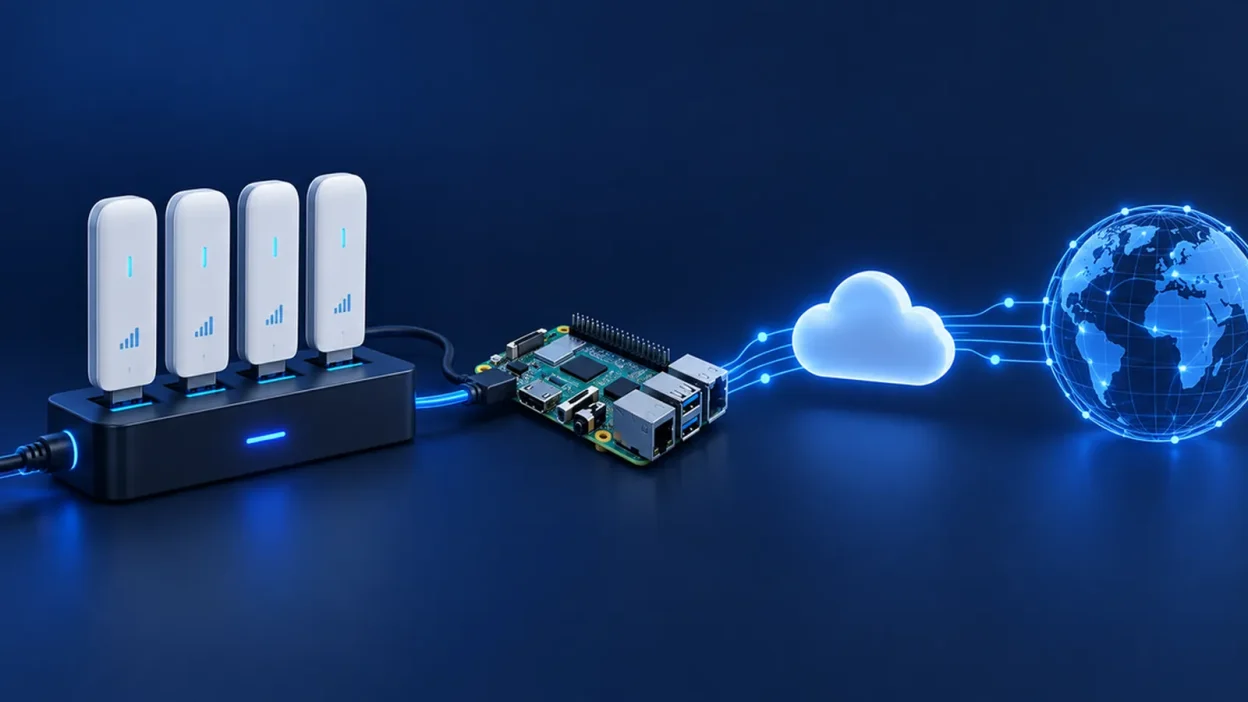
A powered usb hub for 4g dongles needs enough current for transmission bursts, not just the average draw shown on a product listing. The right hub, power brick and cable layout prevent a Raspberry Pi modem farm from disappearing when several sticks transmit at once.
The short answer: size for bursts
Use a self-powered hub with a real external adapter, per-port protection and enough output for every dongle at the same time. For a small Huawei E3372 HiLink setup, start with four data ports and calculate the supply from the highest measured current, then add headroom.
USB’s published limits are useful, but they are not a complete modem-farm design rule. USB-IF compliance guidance lists 500 mA for a standard USB 2.0 downstream port and 900 mA for a standard USB 3.0 downstream port. A cellular modem can behave differently during network transmission, weak-signal operation or reconnects, so a hub that only advertises “USB 2.0 compatible” does not automatically have a suitable power budget.
Reports from modem and router users commonly show anything from a few hundred milliamps to bursts around 1–1.7 A. Treat those as field measurements, not as an official universal rating for every E3372 variant. Measure your own stick if you are filling a hub.
| Planning case per dongle | Current at 5 V | Power per dongle | Four-dongle load |
|---|---|---|---|
| USB 2.0 standard baseline | 0.5 A | 2.5 W | 2 A / 10 W |
| 1 A measured load | 1 A | 5 W | 4 A / 20 W |
| 1.7 A field peak | 1.7 A | 8.5 W | 6.8 A / 34 W |
The four-dongle column excludes the hub’s own electronics. Add at least 25% headroom for the supply and do not run an adapter continuously at its printed maximum. If your meter shows a different peak, substitute that number: dongles × peak amps × 5 V, then add the hub overhead and margin.
What you need
Prepare these parts before you add the first modem:
- A Raspberry Pi or Linux box with a stable power supply.
- A self-powered USB hub with enough data ports for the number of dongles you plan to run.
- The hub’s matched external power adapter. Check its output voltage and wattage, not only the number of ports.
- Short, good-quality USB data cables or extensions that fit the dongles without putting mechanical pressure on the ports.
- A USB current and voltage meter, if you are scaling beyond one or two sticks.
- Huawei E3372 HiLink dongles and SIMs with active data plans, if you are following the reference ProxyKite setup.
The hub powers the modems; it does not supply mobile data. You own the dongles, SIMs and data plans. ProxyKite supplies software and cloud routing, so each working dongle can become an HTTP and SOCKS5 proxy without a static IP or inbound port forwarding. See the Raspberry Pi mobile proxy setup guide for the wider architecture.
Step 1: Count the real load
Why: port count alone tells you nothing about whether the hub’s adapter can feed all the ports together.
- Decide how many dongles will be active on this hub. Count only modem ports, not a port used for a keyboard, storage drive or another accessory.
- Find a current figure for your exact modem variant. If the manufacturer does not publish one, measure a dongle while it is transferring data and while it reconnects to the network.
- Write down the highest stable reading, not the idle reading. If one stick reaches 1.2 A, use 1.2 A for the first calculation even if it usually sits at 0.3 A.
- Multiply the peak by the number of planned dongles, convert to watts at 5 V, and add at least 25% margin.
For example, four dongles measured at 1.2 A each need 4 × 1.2 A = 4.8 A at the USB output, or 24 W at 5 V. A sensible minimum target is about 6 A and 30 W at 5 V before allowing for the hub itself. If the hub uses a 12 V adapter, compare wattage after allowing for conversion losses; do not mistake 12 V input amps for 5 V port amps.
Success looks like a supply whose continuous output exceeds your calculated target and whose voltage stays close to 5 V while all dongles transfer data.
Step 2: Choose port features that help you isolate faults
Why: one misbehaving stick should not force you to unplug the whole farm.
Look for these features in the hub’s specification:
- A separate external power input. A bus-powered hub takes its energy from the Pi’s upstream port and is the wrong starting point for several cellular modems.
- A continuous output rating that covers the calculation from Step 1. “Seven ports” is not a power rating.
- Per-port over-current or short-circuit protection.
- Individual power switches, or another way to power-cycle one port without interrupting the others.
- A clearly stated adapter voltage and wattage, with a proper connector that cannot be pulled out easily.
- Enough physical spacing for dongles and their antenna connectors. A cramped row can put sideways force on the hub.
USB 3 is not automatically better for this job. 4G dongles normally do not need SuperSpeed bandwidth; clean power, data stability and thermal spacing matter more. A USB 2 hub with a strong, honest power design can be a better fit than a USB 3 hub with a weak adapter.
Avoid hubs that rely on a Y-cable to take extra power from two host ports. USB-IF says a peripheral that needs more power than its USB port allows should be self-powered, and its compliance guidance prohibits Y-cables with two A plugs.
Success looks like a hub whose adapter rating covers the calculated load, whose ports have usable protection, and whose individual switches let you isolate one modem without taking down the others.
Step 3: Keep cables short and the 5 V path strong
Why: a modem may work at idle but reset when voltage drops across a thin or long cable during a transmission burst.
- Put the powered hub close to the dongles and the Raspberry Pi, while leaving space around the modems for airflow.
- Use the shortest practical data cable. Avoid chaining multiple passive extensions or connecting the hub through another hub.
- Replace a cable that feels loose, becomes warm at its connector or causes a dongle to vanish when moved.
- Keep high-power modem cables away from sharp bends and avoid hanging several dongles from one captive upstream lead.
- If you use a USB meter, check voltage at the hub output and, where practical, at the end of the cable while the modem uploads data.
The goal is not a particular cable length printed on a box. The goal is stable voltage at the modem during the worst burst. An extension that works for a keyboard can still be a poor choice for a group of LTE transmitters.
Success looks like the voltage remains stable during a simultaneous upload, with no modem disappearing when you move a cable or start a second transfer.
Step 4: Test one dongle before filling the hub
Why: adding four unknown variables at once makes a power fault look like a Linux or SIM problem.
Connect one Huawei E3372 HiLink stick to the powered hub, connect the hub to the Pi, and confirm that Linux sees it:
lsusb
sudo dmesg -w
Start a data transfer through the modem and watch for USB resets, over-current messages or a sudden loss of the device. Stop dmesg with Ctrl+C after the test. If the modem disappears, check the hub adapter, cable and signal conditions before adding another stick.
When one dongle is stable, add the next one and repeat the test. After every addition, check both the operating system and the hub. A stable single-modem test proves the basic connection; it does not prove that the adapter can supply four simultaneous peaks.
Success looks like every modem remains present in lsusb during sustained traffic and reconnect testing, with no repeated USB reset messages in the kernel log.
Step 5: Scale by measured groups, not the printed port count
Why: a large hub can still have a shared internal power rail or an adapter that is smaller than the total theoretical port load.
For a four-dongle group, test all four while they transfer data at the same time. Then test the workload you actually plan to run: proxy traffic, IP rotation and SMS activity can create a different pattern from a single speed test.
If you need more ports, use separate powered hubs rather than assuming one consumer hub will scale indefinitely. Keep a simple inventory showing each hub, adapter rating, connected dongles and measured peak. This makes it easier to move one modem when a group is close to its limit.
Do not share the hub’s supply with the Raspberry Pi unless the manufacturer explicitly designs the arrangement for it. Power the Pi through its normal input and let the powered hub feed the modems. Raspberry Pi’s documentation specifically calls out modems as high-demand devices and recommends an externally powered hub when the USB budget is not sufficient.
Once the hardware is stable, install the routing software by following the ProxyKite getting-started documentation. You can then use the proxy formats guide to test the resulting HTTP or SOCKS5 endpoint.
Success looks like each hub has a recorded peak load, an adapter with spare capacity, and a known maximum number of dongles before you add another group.
Verify the farm before production traffic
Run this checklist with every planned dongle connected:
- Confirm every modem appears in
lsusband has the expected network interface or HiLink management access. - Record the hub’s output voltage at idle and during a simultaneous transfer.
- Watch
sudo dmesg -wfor USB resets, over-current events and repeated connect/disconnect cycles. - Run traffic through each proxy separately. Check that the response comes from the expected mobile connection.
- Power-cycle one hub port at a time and confirm the rest of the farm remains available.
- Leave the group running through the busiest expected period before adding another group of dongles.
Raspberry Pi publishes model-specific USB budgets. For example, its documentation lists 1.2 A total for Raspberry Pi 2, 3 and 4, while Raspberry Pi 5 allows 600 mA with a 3 A supply or 1.6 A with a 5 A supply. Those figures are why the Pi should act as the host and controller while a properly powered hub supplies the modem load. See the Raspberry Pi hardware documentation for the current model table.
Troubleshooting USB hub and modem drops
The dongle appears, then disappears under traffic
Check the hub adapter’s continuous wattage, the cable and the voltage at the modem under load. Reduce the number of active sticks and retest. If the problem stops when one dongle is removed, your power budget or cable path is the first place to investigate.
All dongles disconnect together
Look at the hub’s upstream cable and adapter connection. A loose DC plug, a failing adapter or a hub protection circuit can interrupt every downstream port. Test with the hub by itself, then add the Pi and dongles one at a time.
One port causes the whole group to reset
Remove that dongle and inspect its cable and connector. If the hub has per-port switches or protection, turn off only that port and see whether the other modems remain present. A single faulty cable or stick should not be diagnosed as a Raspberry Pi software problem until it has been isolated.
The Pi reports low voltage
Use a better-rated Pi supply and keep the modem load on the externally powered hub. Raspberry Pi notes that low-quality supplies and cables can cause low-voltage warnings and unpredictable behaviour. Do not back-power the Pi through a badly designed hub; the official documentation warns that this bypasses the board’s protection circuitry.
The modem stays connected but throughput is poor
Power is not the only variable. Check signal, antenna placement, SIM data service and the modem’s network mode. Separate a radio or carrier issue from a USB issue by checking whether the modem remains visible and responsive while traffic slows.
FAQ
Do 4G dongles need a powered USB hub?
One modem may work directly from a Pi or computer, but several modems can exceed the host’s shared USB budget. A self-powered hub gives the dongles a separate power path and makes a multi-modem setup easier to test and expand.
Is a USB 2.0 or USB 3.0 hub better for 4G dongles?
Either can work. Choose the model with the stronger documented power design, suitable spacing and per-port protection; USB 3 bandwidth is usually not the deciding factor for 4G modem traffic.
How many 4G dongles can a USB hub power?
There is no safe answer from port count alone. Divide the hub’s usable output wattage by the measured peak wattage of one dongle, then keep at least 25% headroom and account for the hub’s own electronics.
Why do USB modems disconnect when signal is weak?
A weak radio signal can make a modem work harder and draw more current during transmission. That can expose a marginal adapter, cable or hub; measure the power path while reproducing the disconnect instead of assuming the SIM or Linux driver is at fault.
Can I use ProxyKite with a powered hub?
Yes. ProxyKite is designed around customer-owned Huawei E3372 HiLink dongles connected to a Raspberry Pi or Linux box, including multi-dongle setups. The licence is US$9 per active dongle per month with no per-GB charge; contact ProxyKite if you are planning a larger fleet.