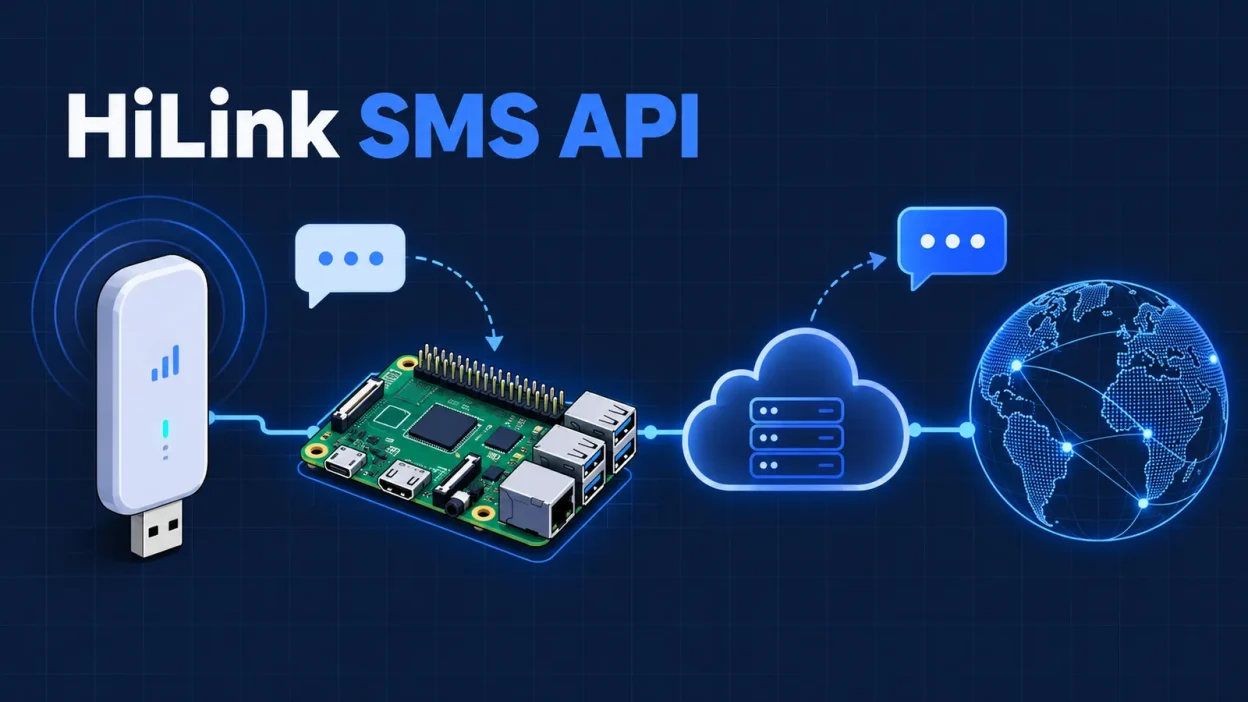
The Huawei HiLink SMS API lets you read messages from a SIM in a compatible 4G dongle and send a single test message from that dongle. This guide starts with the local XML API on a Huawei E3372 HiLink, then shows how the same SMS workflow fits a Raspberry Pi proxy farm.
What you need
Prepare these items before you send a request:
- A Huawei E3372 in HiLink mode, or a similar Huawei HiLink model.
- A SIM that you own or are authorized to operate, with SMS service enabled.
- A Linux computer or Raspberry Pi connected to the dongle. A single stick is enough for this test; a powered USB hub is useful for a farm.
- SSH or a local terminal with
curl. - The dongle’s local management address. Many HiLink devices use
192.168.8.1, but the address can change with firmware or network setup.
HiLink is different from a traditional serial USB modem. It exposes a small web interface and an HTTP API over its own USB Ethernet network. The Go HiLink package documentation describes the same SMS operations and is a useful reference when you move from shell commands to application code.
Step 1: Confirm the dongle is in HiLink mode
Why this matters: the API below is served by the HiLink web interface. A stick-mode modem that exposes only serial ports will not answer these URLs.
Set the base address and make two read-only requests:
BASE=http://192.168.8.1

curl -fsS "$BASE/api/monitoring/status" | head
curl -fsS "$BASE/api/sms/sms-count"
The first response should contain device or network status. The second should return XML with SMS counts. If both requests fail, open the modem’s web interface in a browser at http://192.168.8.1 and confirm the address shown by your USB network connection.
Success looks like an XML response from the modem, not a timeout and not your computer’s normal internet login page. Do not flash firmware just to follow this guide; use the HiLink firmware already intended for your exact hardware revision.
Step 2: Create a HiLink session and token
Why this matters: most older E3372 HiLink WebUIs expect a session cookie and a request-verification token on protected API calls. Fetch them together so the cookie and token belong to the same session.
Run this in the same shell as the later commands:
COOKIE=$(mktemp)
TOKEN_XML=$(mktemp)

curl -fsS -c "$COOKIE" "$BASE/api/webserver/SesTokInfo" > "$TOKEN_XML"
TOKEN=$(sed -n 's:.*<TokInfo>\(.*\)</TokInfo>.*:\1:p' "$TOKEN_XML")
SESSION=$(awk '$6 == "SessionID" {print $7}' "$COOKIE" | tail -n 1)

test -n "$TOKEN" && test -n "$SESSION" && echo "HiLink session ready"
The final command should print HiLink session ready. Keep the cookie file and token private while you use them. They authorise requests to the local modem.
Some newer WebUIs use a challenge-login flow instead of returning a usable SesTokInfo response. If TOKEN or SESSION is empty, inspect the WebUI version and use the login sequence supported by that firmware or a maintained HiLink library. The SMS endpoint names and XML fields can vary between Huawei WebUI versions.
Step 3: Read received SMS messages
Why this matters: the inbox request is a paginated XML POST, not a normal JSON GET. BoxType=1 selects the received-message box and UnreadPreferred=1 puts unread messages first where the WebUI supports that flag.
Request the newest 20 messages:
curl -fsS -X POST "$BASE/api/sms/sms-list" \
  -b "$COOKIE" \
  -H "__RequestVerificationToken: $TOKEN" \
  -H "Content-Type: text/xml; charset=UTF-8" \
  --data-binary @- <<'XML'
<?xml version="1.0" encoding="UTF-8"?>
<request>
  <PageIndex>1</PageIndex>
  <ReadCount>20</ReadCount>
  <BoxType>1</BoxType>
  <SortType>0</SortType>
  <Ascending>0</Ascending>
  <UnreadPreferred>1</UnreadPreferred>
</request>
XML
Look for the sender, message content, timestamp, read state, and the message Index in the XML response. Save the index if your application needs to mark a message as read or delete one after your retention policy allows it. Do not delete messages immediately if you still need them for an audit trail.
The HiLink API implementation on GitHub uses the same api/sms/sms-list route and documents the inbox request fields. Treat it as an implementation reference, not a guarantee that every E3372 WebUI exposes identical fields.
Step 4: Send one SMS from the dongle
Why this matters: HiLink’s send operation also expects XML, including the recipient, message length, and a timestamp. Start with one short message to a number you control so you can verify the path without creating an unwanted messaging workflow.
Use a plain ASCII test message first. That keeps the character count predictable:
TO='+15551234567'
MESSAGE='HiLink test message.'
NOW=$(date '+%Y-%m-%d %H:%M:%S')
LENGTH=${#MESSAGE}

curl -fsS -X POST "$BASE/api/sms/send-sms" \
  -b "$COOKIE" \
  -H "__RequestVerificationToken: $TOKEN" \
  -H "Content-Type: text/xml; charset=UTF-8" \
  --data-binary @- <<XML
<?xml version="1.0" encoding="UTF-8"?>
<request>
  <Index>-1</Index>
  <Phones>
    <Phone>$TO</Phone>
  </Phones>
  <Sca></Sca>
  <Content>$MESSAGE</Content>
  <Length>$LENGTH</Length>
  <Reserved>1</Reserved>
  <Date>$NOW</Date>
  <SendType>0</SendType>
</request>
XML
An OK response means the modem accepted the request. It does not replace checking the send-status endpoint or the sent-message box. Keep the content XML-safe: do not place raw <, >, or & characters in $MESSAGE unless your script escapes them first.
Step 5: Check the send status
Why this matters: the send request and delivery state are separate operations. Checking status gives your script a clear point at which to record an accepted or failed send.
Query the modem immediately after the send request:
curl -fsS "$BASE/api/sms/send-status" \
  -b "$COOKIE" \
  -H "__RequestVerificationToken: $TOKEN"
Then query the sent box with BoxType=2 if you need a local record of the message. For a production integration, store the request ID or message index returned by your chosen library, redact message bodies in logs, and make retries explicit so one network retry does not accidentally create a duplicate.
Step 6: Use SMS across a proxy farm
Why this matters: repeating local cookie handling, XML parsing, and device polling for every dongle creates unnecessary plumbing. A managed layer gives your application one authenticated API while each customer-owned SIM and dongle remains the source of its own SMS traffic.
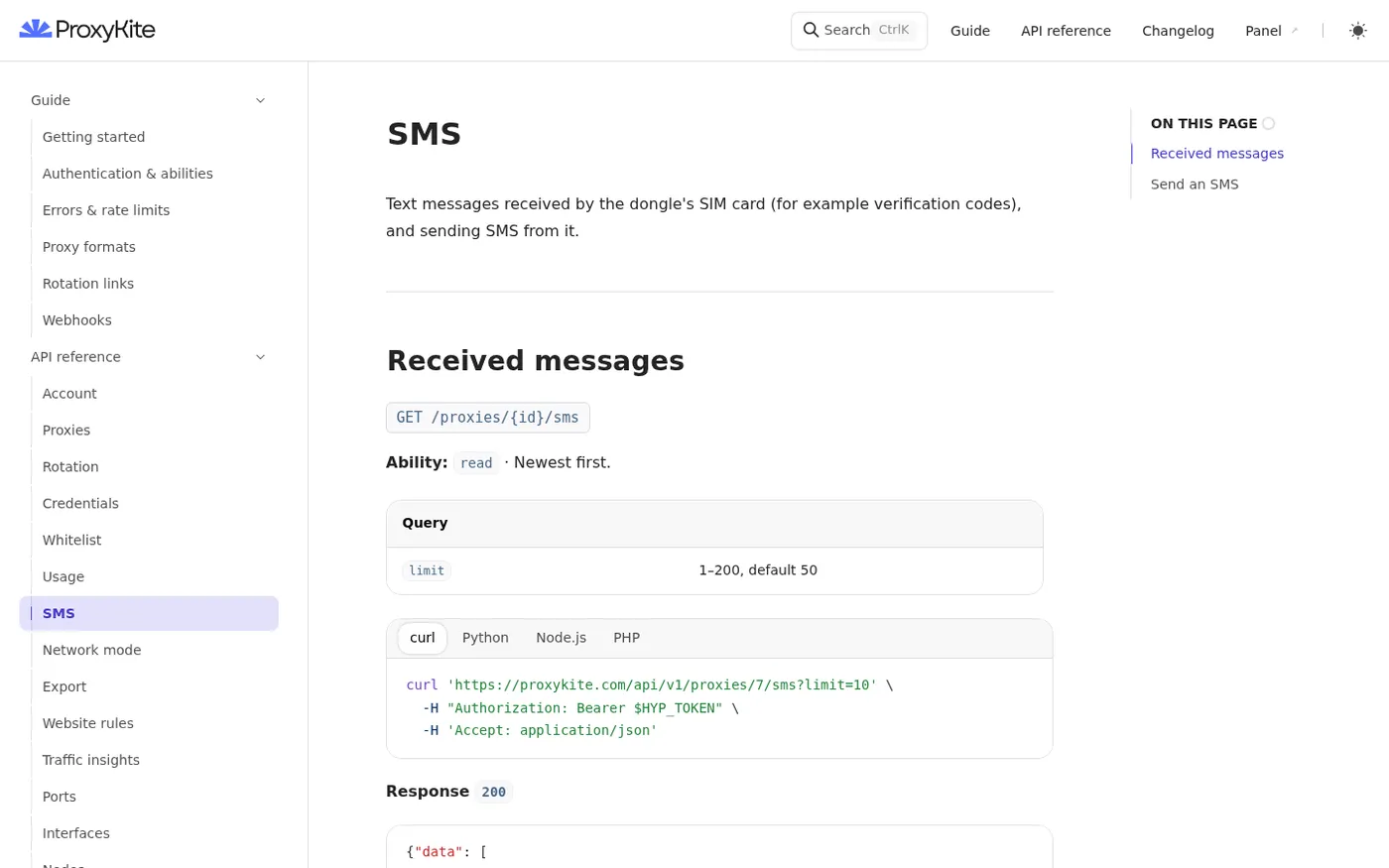
With ProxyKite, the SMS inbox is exposed through the cloud API for a proxy or dongle. The SMS API reference shows the JSON response, Bearer authentication, and the limit query parameter. A read request looks like this:
PROXY_ID='your-proxy-id'
PROXYKITE_TOKEN='your-api-token'

curl "https://proxykite.com/api/v1/proxies/$PROXY_ID/sms?limit=10" \
  -H "Authorization: Bearer $PROXYKITE_TOKEN" \
  -H "Accept: application/json"
Use the send operation shown in the same API reference when your application needs to send from a SIM. Keep the token in an environment variable or secret store, not in a repository, screenshot, or customer-facing script.
Success looks like a JSON response scoped to the requested proxy or dongle, without exposing another device’s messages.
The per-dongle licence is $9 per dongle per month. It includes SIM inbox for carrier messages, plus HTTP and SOCKS5 proxy access, limits, traffic insights, alerts, sub-users, white-label options, and a REST API. It is software and cloud routing for hardware and SIMs you own; it is not a SIM, dongle, mobile data plan, or bandwidth package.
If you are still assembling the hardware layer, read 4G Proxy Farm Setup: Hardware, Power and Software for the USB hub and Raspberry Pi layout. The broader guide to building your own mobile proxy explains how the dongle becomes a usable proxy after the network path is ready.
Verify the complete flow
Run this checklist before wiring SMS into an application:
- The Pi can reach the HiLink address and receives XML from
/api/sms/sms-count. - The session cookie and token are created in the same shell session.
- The inbox request returns XML and shows the expected message index.
- A single test SMS is accepted, and
/api/sms/send-statusis checked. - The cloud request returns JSON with the expected proxy or dongle scope.
- Logs contain no full API token, cookie, phone number, or message body unless your retention policy requires it.
Troubleshooting
The modem returns HTML instead of XML
You are probably using the wrong local address, or the device is not in HiLink mode. Open the modem’s web interface, check the USB network route, and repeat the request against the address assigned to the dongle. A serial-only stick requires a different integration and is outside this API example.
The request returns 403 or an empty token
Fetch SesTokInfo again and use the new cookie and token together. Do not reuse a token after the WebUI session has expired. If the endpoint itself is absent, use the firmware’s challenge-login flow or a library that supports that WebUI generation.
The inbox is empty
Check the SIM in a phone or the modem’s WebUI using a number and account you control. Confirm that the modem is registered on the network and that the SIM can receive SMS. Then request sms-count and sms-list again; an empty inbox is different from a failed API request.
Sending returns OK, but the message is not visible
Query send-status and the sent box. Check the recipient format, keep the first test message short and ASCII, and make sure the Date value is current. Do not blindly retry a request until you know whether the first send was accepted.
The farm API returns 401
Check the Authorization: Bearer header and the token’s scope. Keep the token in an environment variable, and replace it through your account controls if it has been exposed.
FAQ
What is the Huawei HiLink SMS API endpoint for received messages?
On the local HiLink WebUI, received messages are read with POST /api/sms/sms-list and an XML body containing BoxType=1. You also need the session cookie and request-verification token expected by that modem’s WebUI.
Can a Huawei E3372 send SMS with curl?
Yes, a compatible E3372 HiLink WebUI exposes POST /api/sms/send-sms. Send one authorised test message with the recipient, content, length, and current date, then check send-status rather than treating the first response as final delivery proof.
Is HiLink SMS the same as the ProxyKite SMS API?
No. HiLink is the local XML interface between your computer and the dongle. ProxyKite provides an authenticated cloud JSON interface so an application can read and send SMS across managed dongles without implementing each local session flow itself.
Can I use this for QA testing?
Yes, when the SIM, phone number, and app under test are yours or you have clear permission to test them. Keep the workflow limited to legitimate QA and operations, and protect the message contents and API credentials.